

Setting Up Email in Thunderbird
Desktop email clients, like Mozilla Thunderbird, retrieve your email from your server so you can read email without opening a web browser. You don’t have to use a desktop client, but many people find it convenient.
This article will walk you through setting up email on Mozilla Thunderbird. These instructions should be fairly consistent with all recent versions of Thunderbird.
Before you can set up your email client, you’ll need to find your email configuration settings:
Once you’ve done that, you’re all ready to set up your account in Thunderbird.
Configuring Thunderbird
- Open the File menu, then click on New and Existing Mail Account….
- Enter Your name as you want it to appear in emails that you send.
- Enter your Email address and Password.
- Click Continue. Thunderbird now will attempt to discover the settings for your account automatically. You can then use manual configuration to check these settings.

- If Thunderbird hasn’t found settings for your account, the manual configuration will appear. Or, click the Manual config button.
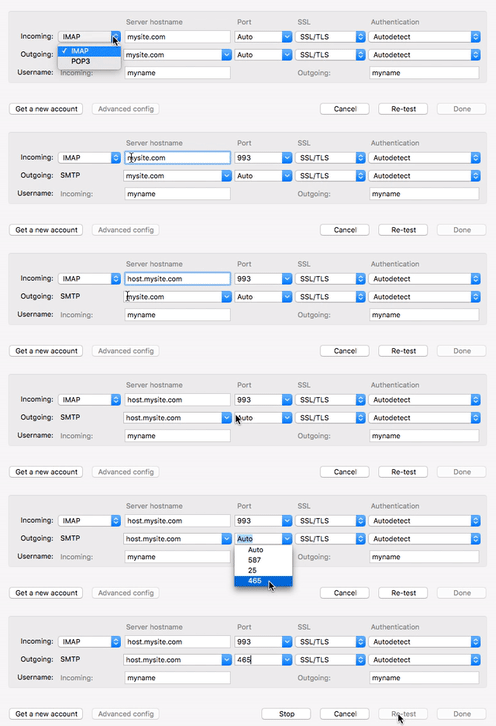
- This is where you’ll choose your settings based on the Manual Settings from cPanel.
- Choose IMAP or POP3 for your incoming mail server
- Then, type in your incoming Server hostname and the Port. Choosing the correct port will autopopulate SSL.
- Now, fill in the same fields for the Outgoing server, making sure to use the settings from your cPanel Manual Settings.
- Click Re-test to retry the email connection.
Tip:
You may receive a warning about your SSL certificate when you set up your mail client. This is because you probably have a self-signed SSL certificate instead of a certificate signed by a recognized certificate authority. Your email will still be encrypted even if you have a self-signed SSL certificate. To see if a SSL certificate signed by a certificate authority is right for you, read What Is an SSL Certificate? Click Yes to accept the certificate and continue testing your connection. - Once your connection has been confirmed, click Done. You’re ready to start using your email in Thunderbird.