

Managing Email Services in InterWorx Web Panel
Managing your email server can be an involved process, but InterWorx control panel makes the process easier by consolidating the tools you need to manage the server in NodeWorx and the tools you need to manage individual domains and users in SiteWorx. Let’s look at the most commonly needed server and individual tools/settings.
Email Server Tools
The first step to managing email in Interworx is to setup or customize the server settings in NodeWorx. To login to NodeWorx, see Logging into InterWorx Webpanel and follow the directions for logging in as the administrator. Once logged in, click the + sign next to System Services to expand the menu, then click the + sign next to Mail Server to see the menu options for mail server settings.

MTA Settings
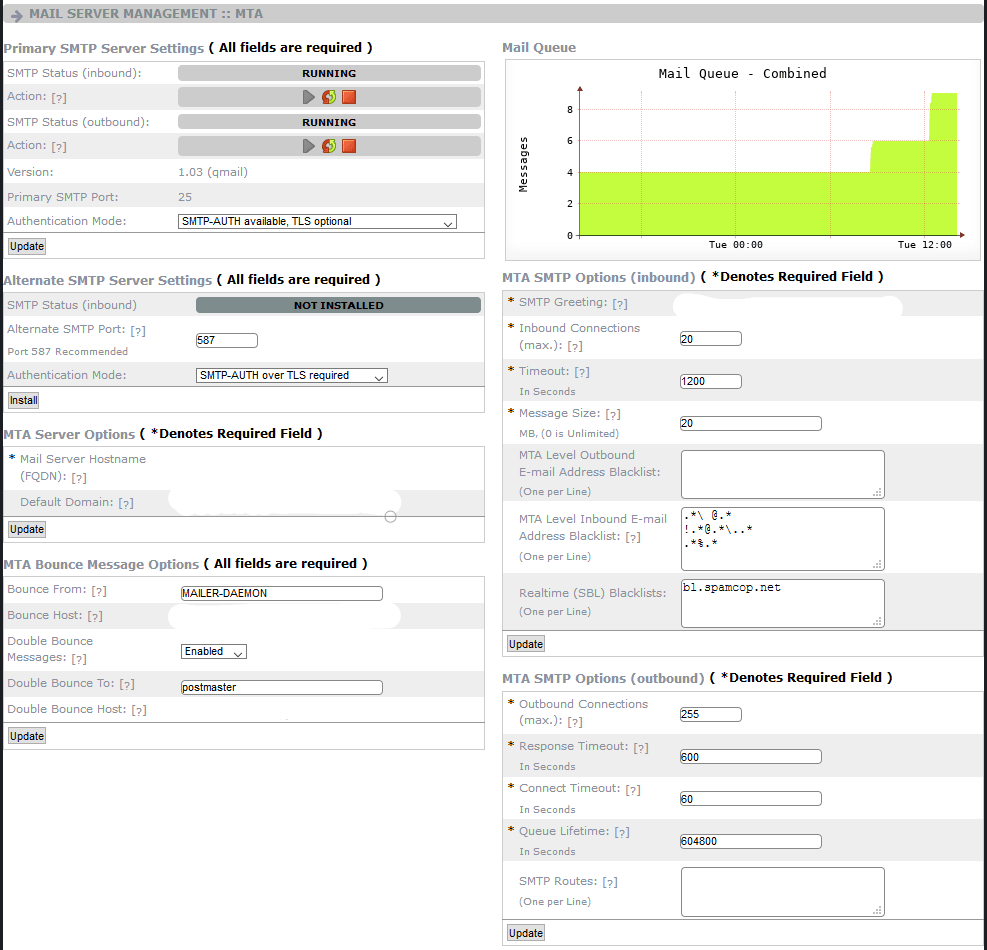
When you set up your email server on InterWorx, you may need to customize the settings to work with your DNS settings, etc. The MTA settings page allows you make these adjustments. You can also start, stop, and reset both the Inbound and Outbound SMTP services.
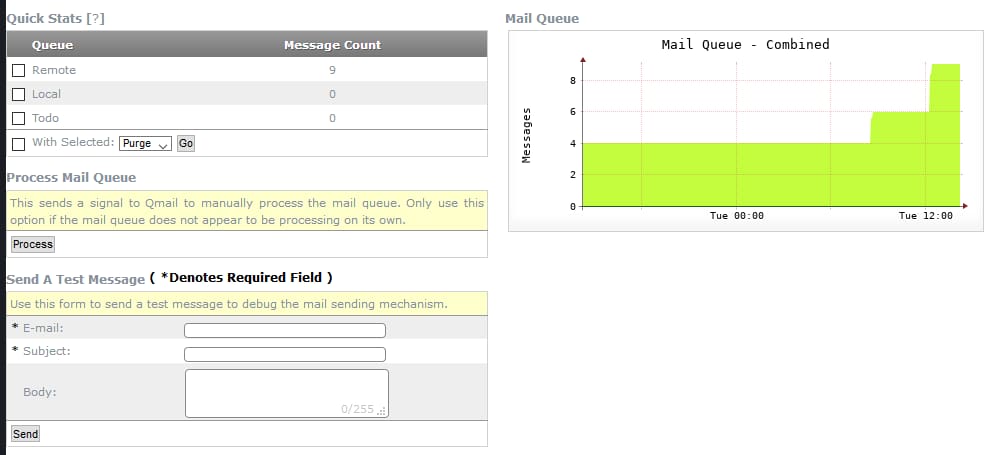
The MTA Settings page provides a quick view of the Mail Queue so you can see if messages are flowing through the server or if there is a problem with delivery (or even possible spam issues).
MDA Settings
InterWorx uses the open-source Dovecot system to manage POP3 and IMAP services. You can use the MDA Settings section to make adjustments to those services and apply SSLs to those services if desired.

Spam Filtering
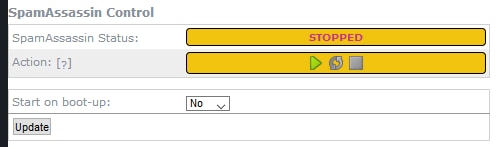
InterWorx uses SpamAssassin to provide spam filtering for your email system. The Spam Assassin Control section allows you to start, stop, and restart the spam service as needed. You can also set the service to start on boot-up and to auto-restart if it encounters a problem.
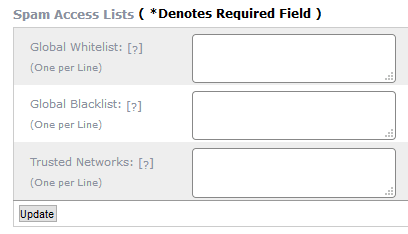
In the Spam Access Lists, you can set global whitelists (domains or email addresses that should always be allowed to send messages), global blacklists (domains or email addresses that should never be allowed to send messages), and trusted networks (or relay servers. This is a less commonly used features).
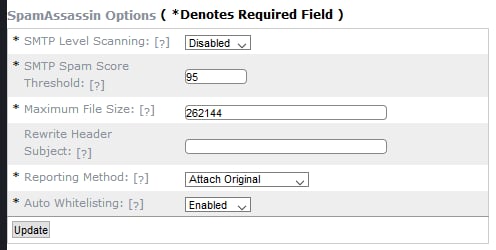
The SpamAssassin Options section allows you to set common options for spam filtering, such as score thresholds and maximum file sizes.
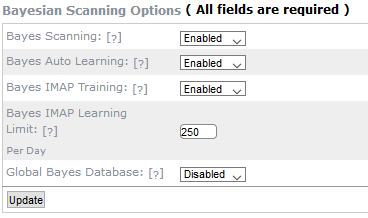
Bayesian Scanning Options allows you to enable and adjust Bayes Scanning. Bayes Scanning will monitor your email usage to learn which types of email are most likely spam and filter them.
Virus Filtering
Viruses are a common cause of frustration and lost productivity. Unfortunately, email is often a vehicle for viruses to be delivered to your end-users. InterWorx uses ClamAV to provide virus filtering for your server. From the Virus Filtering page, you can turn ClamAV on and off and set enable auto-start and restart as needed.

Mail Queue
The Mail Queue section of NodeWorx allows you to check the incoming and outgoing email queues. High numbers of email in the queue could indicate problems with compromised accounts or spam delivery. You can also use this section to send test messages to make sure that email is being delivered correctly.
Individual Email Tools
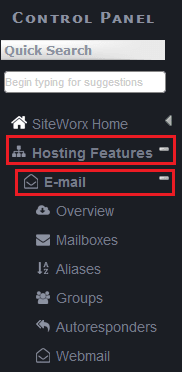
While NodeWorx manages your overall email server settings and services, SiteWorx allows you to control the options for individual domains and accounts. To login to SiteWorx for a domain, see Logging into InterWorx Webpanel and go to the section on logging into SiteWorx as a domain user. Once you are logged into the SiteWorx account for a domain, expand the menu for Hosting Features and the menu for Email.
Overview
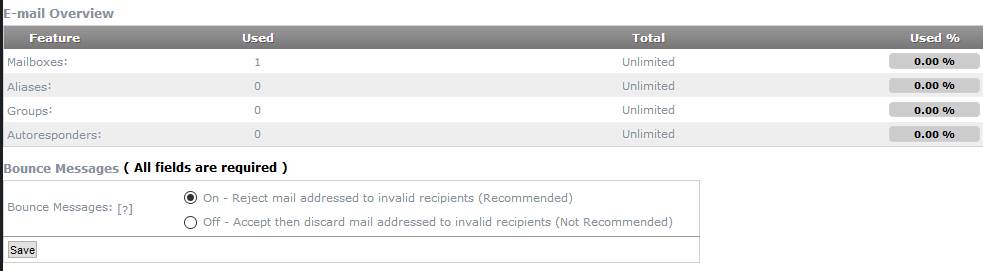
The overview section lets you see how many mailboxes, aliases, groups, and autoresponders are set for the domain. You can also choose how to handle messages sent to invalid addresses (generally a method spammers use to try to find accounts they can spam).
Mailboxes
The mailboxes section allows you to create new mailboxes for your domain and edit existing mailboxes. When creating email addresses, you can create the account, set the password (or use the password generator to create a strong password), set a disk space quota on the account, and even send a welcome message to the new user.
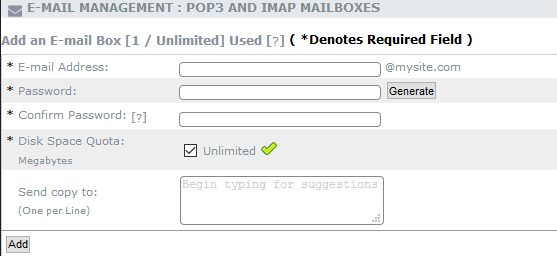
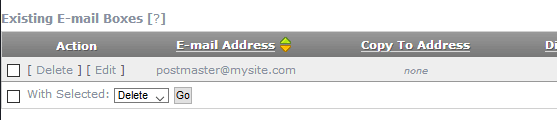
You can edit an existing account by clicking on the edit link next to the email address in the list. While editing, you can change the user’s password, adjust their space quota, see how much disk space they are currently using, send copies of incoming mail to another address, and set a custom vacation message. You can delete an unneeded email account by clicking the delete link next to the address. To make sure you don’t accidentally delete an account, you’ll also need to click the delete button in the pop-up window to confirm your choice.
Aliases
Using Aliases, you can give someone an email address on your domain while forwarding the email to their own email address. This can be a way to have a general email name (like support or sales) that can be forwarded to the individual in your organization that is responsible for those tasks. It can also be convenient if you have a developer or freelance worker that doesn’t want to have to check another email account but you would like to be able to send email to a familiar address. CAUTION: all email to the alias will be forwarded, so if that address receives a significant amount of spam, your server may appear to be sending spam as it forwards those messages.
To set up an email alias, just enter the address and the new email address to which you want the email forwarded. Click Add to save the change.

Groups
Sometimes, everyone in your organization needs to receive the same email messages. Groups are the way to create a single address that can receive email and be delivered to multiple people. Just type the group name in the Email address field, then add the email addresses that you want to receive the email in the “Forwards To” field. Groups function like aliases, but with multiple destination mailboxes.
Autoresponders
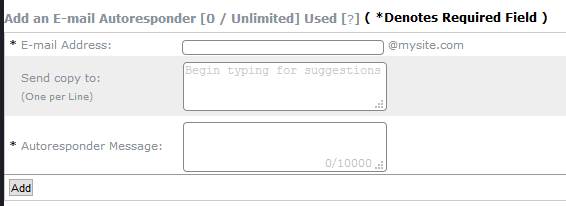
Autoresponders can be configured to send a default message to anyone who sends an email to a specific address. Autoresponders can be a simple way to send responses to inquiries or general messages sent to a specific address on your domain. To enable an autoresponder, enter the email address and the message, then click Add.
Webmail
The webmail link in SiteWorx opens the login page for webmail for your domain. You can also get to this page by entering the domain name or server IP address in the location bar, followed by /webmail. Enter your email username and password to access your webmail. For more information on using webmail in InterWorx, see Using Webmail in InterWorx.