Change a Database User Password in Cloud Sites
This article will show you how to change database user passwords in Cloud Sites.
It’s a good security practice to change all your passwords regularly. If someone unauthorized has accessed your Cloud Sites account, you should also change your passwords. This article will show you how to change database user passwords in Cloud Sites.
- Log into your Cloud Sites control panel.
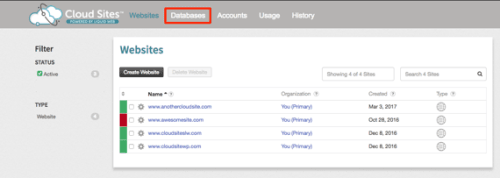
- In the top navigation menu, click Databases.

- Click the name of the database where you want to change user passwords.

- Find the user you’d like to edit and click on the
 icon. Then, click on Change Password.
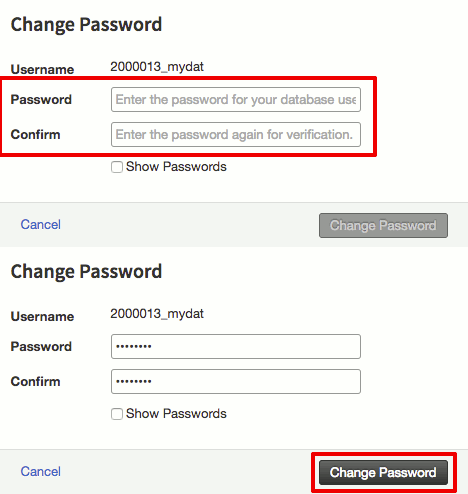
- Enter and then confirm a new strong password (for more information on strong passwords, see Best Practice: Creating a Secure Password. Then, click Change Password to save your changes.


 icon. Then, click on Change Password.