

Setting Up Email on Android Devices
Reading email on your smartphone is convenient when you’re on the go. This walkthrough should work for most Android devices, but every Android system is slightly different. The phone used in this article is a Samsung S6.
Before you can set up your email client, you’ll need to find your email configuration settings:
Once you’ve done that, you’re all ready to set up your account.
Configuring Your Android Device
- Open the Email application on your phone or tablet.

- Then, tap Add Other Account. Enter your Email address and Password. Then, click Sign In.

- Because you’re setting up email from your own server, you’ll have to confirm some manual settings using the settings from your cPanel account.

- Tap on POP3 Account or IMAP Account to begin configuring your account.
POP3 or IMAP?
Because IMAP is able to keep your mail synced across multiple devices, we highly recommend using IMAP instead of POP3. Using IMAP will allow you to easily check your email on your phone, on your home computer, and with webmail.
- Make sure the Incoming server settings match the Incoming Server from your cPanel (or Plesk) mail configuration settings.
- If you’re using secure SSL/TLS settings, make sure the Security type is set to SSL and the Port is correct.
- Then, follow the same process for the Outgoing server settings, making sure they match the Outgoing Server settings from your cPanel (or Plesk) settings.
- Check the box for Authentication required before sending emails and then tap Sign In.
- Tap on POP3 Account or IMAP Account to begin configuring your account.
- Your settings will be verified and now you can set how often you’d like your phone to check your server for mail and if you want to be notified of new emails. Once you’ve chosen your settings, tap Sign In.

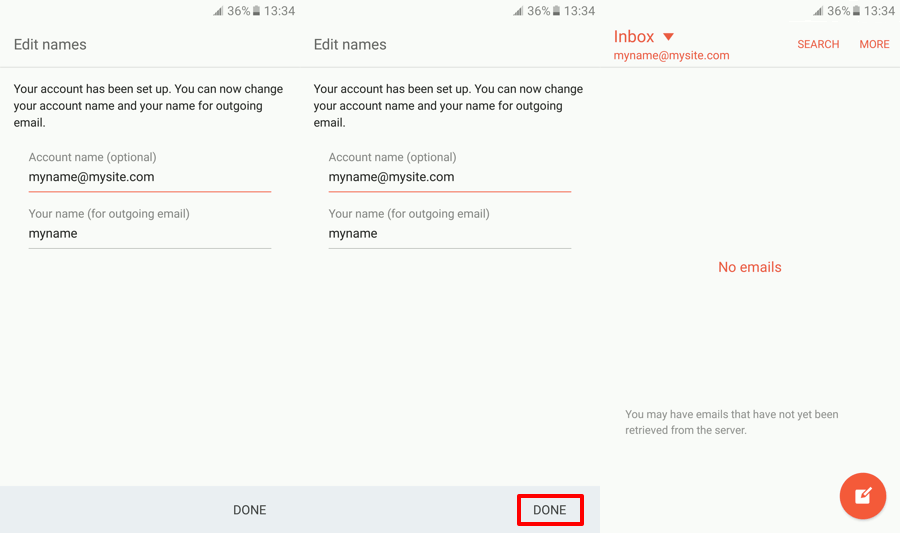
- You’ve successfully added an account to your Android device! If you want, you can change the Account name and Your name on outgoing mail. Tap Done to return to your email inbox.
Troubleshooting: |
If you are having trouble connecting to your IMAP or POP3 email, make sure that you check the ports assigned to these services. Occasionally, they will be changed for security purposes and the normal ports will not be valid. To check the ports assigned to email services:
|


