Exporting Emails from cPanel
You can use webmail to export (download) emails from a cPanel server. This is useful if you need a backup of all the emails in a specific account. Keep in mind this may not work as intended if you use POP3 with a desktop or mobile email client. If you have a desktop client, you could also export emails directly from that client for archival purposes. This tutorial will focus on exporting directly from a webmail account.
Currently cPanel-based servers offer three webmail interfaces (Horde, Squirrel Mail, and RoundCube). This makes viewing and managing email accounts convenient without the need to set up an email client. You can switch between webmail options at any time without losing any data. For this article, we’ll be using Horde. Horde can export entire folders, while Roundcube and SquirrelMail only allow you to export one email at a time. If you have a lot of email, it will take a long time to export each email individually!
- Start by logging into your webmail. Log into the cPanel account that owns the email account.
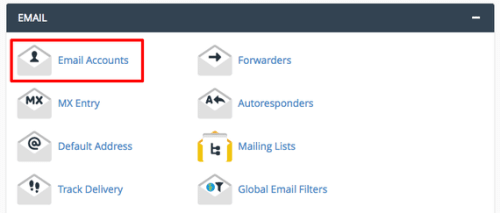
- In the Email section on the main page of your cPanel account, click on Email Accounts.

- In the Email Accounts settings page, scroll down to Email Accounts and find the account where you want to export email. Click on the More button and then click Access Webmail.

Opening Webmail Directly
You can also log into your webmail using your email address and email password by visiting: http://192.0.2.0:2097
(Replace 192.0.2.0 with your server IP address) or
http://host.mysite.com:2097
(Replace host.mysite.com with your server hostname)
- Once you’ve logged into your webmail, you’ll either have the option to select your webmail interface or you’ll be taken directly to your inbox (if you’ve previously set a default webmail service).
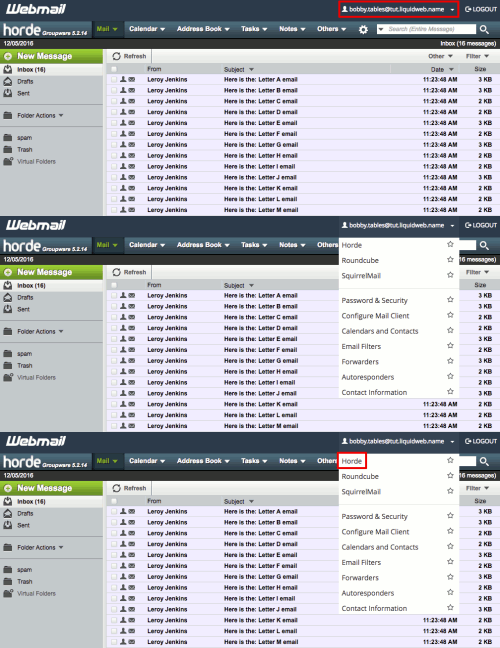
- If you have the option to select your webmail application, click on Horde.

- if you are taken straight to your inbox, look in the upper right hand corner of the screen to make sure you’re using Horde. If you aren’t, click on your email address in the upper right hand corner and then click Horde.

- If you have the option to select your webmail application, click on Horde.
- On the left side of the screen, you’ll see a list of all your webmail folders. Right click on the folder you want to export and then, in the menu, click Export.

- Use the dropdown to choose if you want an uncompressed MBOX file or a compressed MBOX file and then click OK.

- If there are more folders you want to export, simply repeat these steps for each folder!