

Deleting Files and Folders in cPanel
We’ve shown you in previous articles how to upload public_html files and add files and folders using the File Manager in cPanel, now let’s look at deleting them. In just a few clicks you can delete files and folders from your website.
Warning: |
| Deleting files and folders will permanently delete them from the site. If you need a copy for later use, take a manual backup before deleting any files or folders (see Taking a Manual Backup in cPanel). |
Delete a File
- To delete a file, log into cPanel and navigate to the File Manager.
- Open the public_html directory.

- Highlight the file you want to delete by clicking on it.

- Click the Delete button at the top of the page.
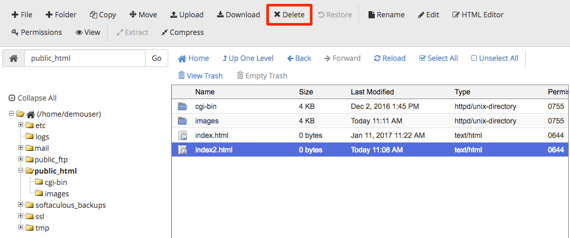
- A pop-up asking you to confirm that you want to delete will appear. If you want to permanently delete the file, click the Skip trash and permanently delete the file box. Otherwise, the file will go into the trash to be manually deleted later.
Note:
You can delete files in the trash by clicking the View Trash link and then select Empty Trash once you are in the trash folder. 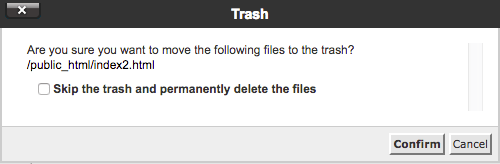
- Click Confirm to delete the file.
- The file will no longer show in the public_html directory.

Delete a Folder
- From the File Manager in cPanel, highlight the folder you want to delete.

- Click the Delete link from the tool bar at the top of the page.
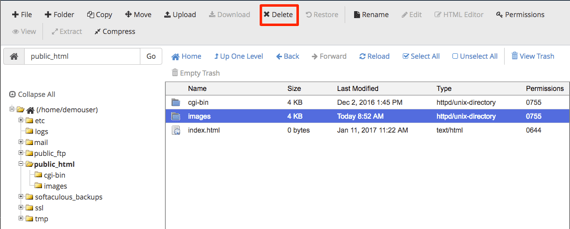
- A pop-up will appear asking you to confirm that you want to delete the folder. If you want to permanently delete the file, click the Skip trash and permanently delete the file box. Otherwise, the file will go into the trash to be manually deleted later.
Note:
You can delete files in the trash by clicking the View Trash link and then select Empty Trash once you are in the trash folder. 
- The folder will be deleted and no longer show in the public_html list.
