

Deleting a Backup Manually in Softaculous
When you set up your backups in Softaculous, you have the option to have them automatically delete on a rotating basis, but deleting them manually takes just a few steps.
- Click on the backups icon on the home page of Softaculous.

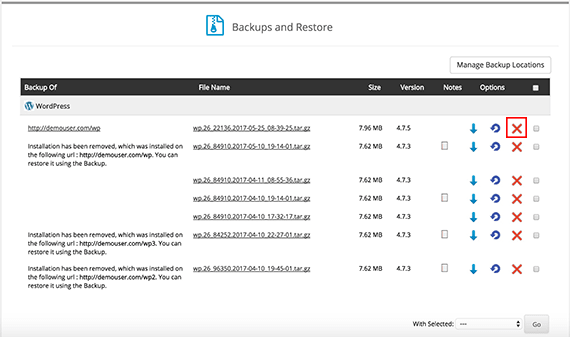
- From the Backups and Restore home page, click the red X icon.
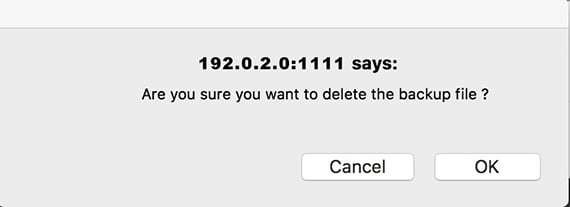
- A pop-up will appear asking you to confirm that you want to delete the backup file. Click OK.
- Once the backup is deleted, a success message will appear above the backup list.

Need to know how to restore your site from a backup? Check out our article Restoring from a Backup in Softaculous to learn more.