

Troubleshooting: I Can’t Find My Spam Folder
Problem
Spam filters like SpamAssassin do a pretty good job of catching unwanted email. But, sometimes they catch an email you want in your inbox! If you are using SpamAssassin or another filtering program that is configured to move spam mail into a spam box automatically it might not be showing up in your webmail or email client. You have to separately subscribe to your spam folder to be able to see it.
When you set up Spam Box in SpamAssassin, all messages marked as spam will go to a spam folder on the server. It’s just not automatically sent to your webmail, desktop, or mobile client. If you think you had a legitimate email go to your spam folder but don’t see a spam folder in your webmail, don’t worry! The email is likely still on your server. The rest of this article will show you how to subscribe to your spam folder.
Solution
Creating a spam folder and subscribing to it will allow you to see spam email as it comes in. The process is straightforward, but is different for each webmail provider:
Horde
- Log into your Horde webmail interface.
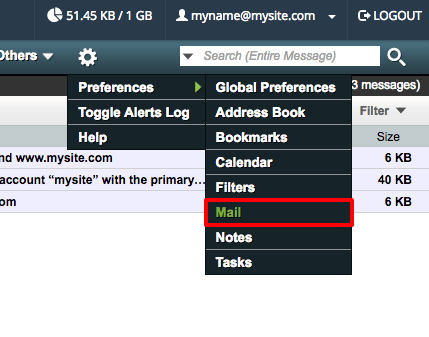
- In the navigation menu, click on the gear icon, then Preferences and Mail.
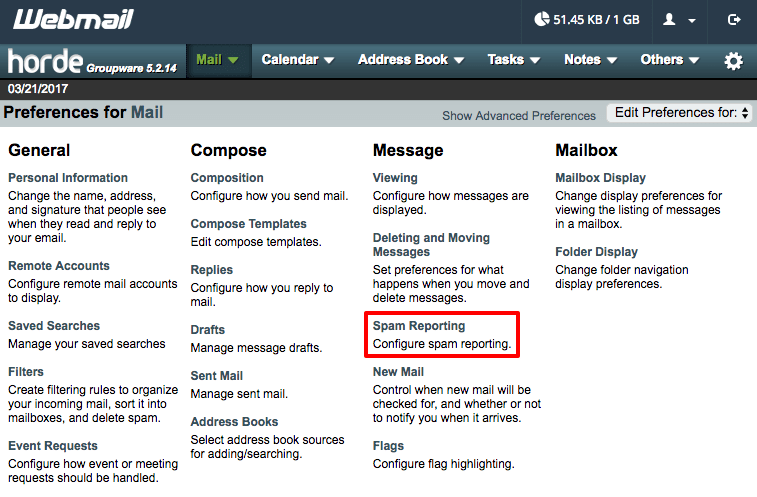
- In the Message section, click on Spam Reporting.
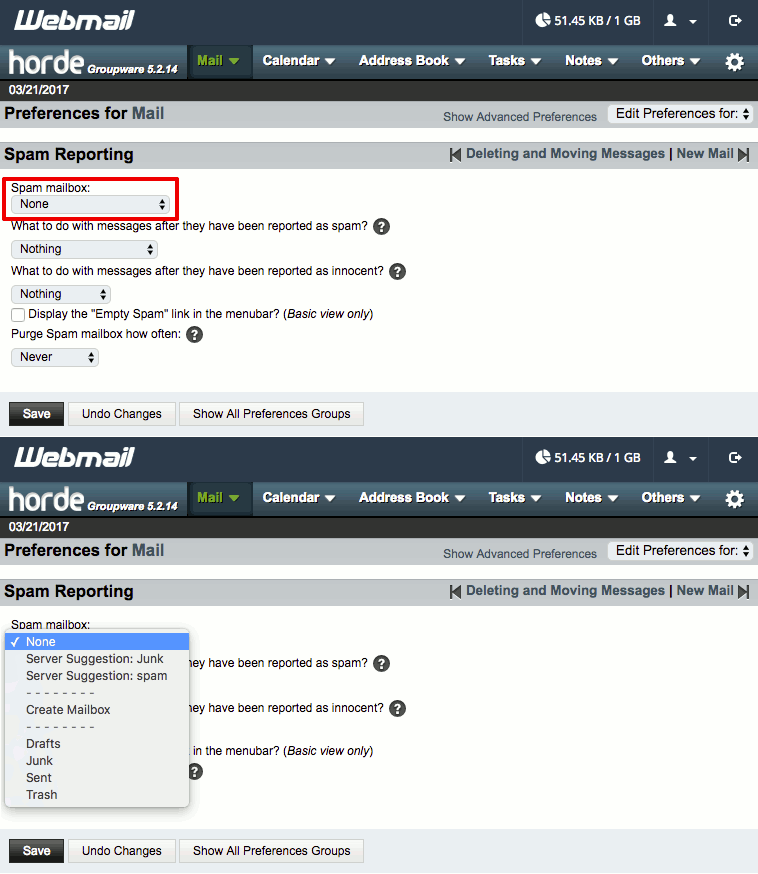
- Use the Spam mailbox dropdown to select what you’d like to call your spam folder.
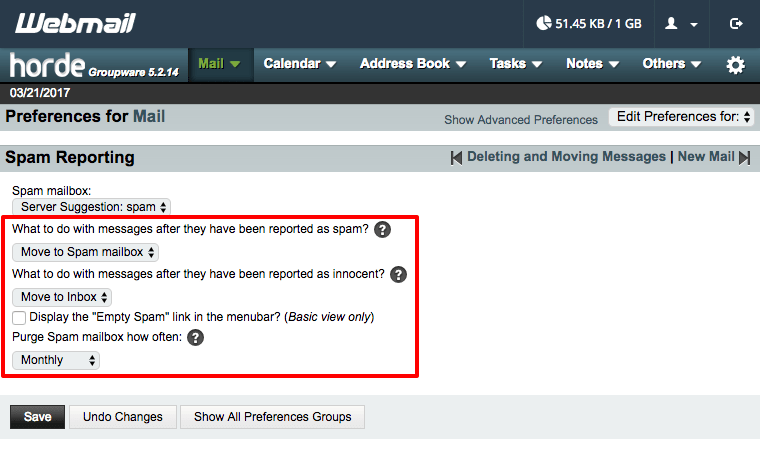
- Then use the remaining dropdown menus to decide what you want to do with messages reported as spam or as innocent. You can also choose how often you want to delete the contents of your spam folder.
- Once you’ve chosen your settings, click Save.
Roundcube
- Log into your Roundcube webmail interface.
- Click on the gear icon to view your settings.

- Click on the Folders tab.

- Click the + at the bottom of the folder listing and add a “spam” folder. SpamAssassin will only find this folder if you use all lowercase letters. You can place the spam folder in any parent folder you’d like. Click Save to create your folder.

- Make sure the checkbox next to your newly created folder is checked. You can return to your mailbox (click Mail) and you will be able to see your new spam folder.
SquirrelMail
- Log into your SquirrelMail webmail interface.
- In the top navigation, click Folders.

- In the Unsubscribe/Subscribe section, click the checkbox next to spam and click Subscribe.

- If you don’t see a spam folder, use the Create Folder section to add a “spam” folder. SpamAssassin will only find this folder if you use all lowercase letters. Once you’ve created it, you can subscribe to it as normal.
Once you’ve subscribed to your spam folder, any messages marked as spam will be synced to your webmail the next time your email syncs.