

Enabling Two-Factor Authentication in cPanel
Before Two-Factor Authentication can be enabled for your user, they will need to download a two-factor authentication app like Duo Mobile or Google Authenticator. With this app, you will enter the key or scan the QR Code given during the Two-Factor Authorization process
Two-factor authorization means that instead of just a password, you will also need a rotating authentication token along with the password (two factors) to log into your cPanel account. Only the correct combination of the first and second factor will allow you to log in and access your account. In order to require cPanel user two-factor authentication, you need to set it up in WHM to be enabled for all users.
- Log into cPanel to enable two-factor authorization.
- Type the word two in the search bar at the top of the page.
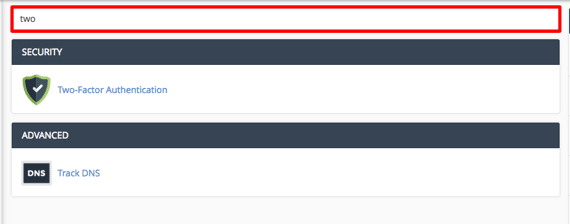
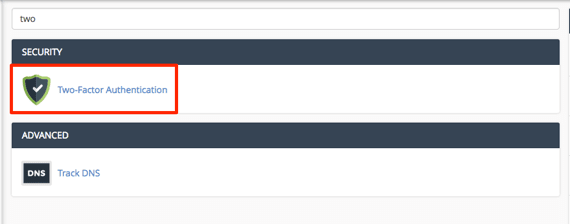
- Select Two-Factor Authentication from the options that appear.
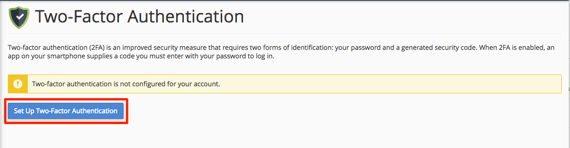
- From the home page , click the button Set Up Two Factor Authentication to begin the process.
- Use the authentication application on your phone to scan the QR code or enter the credentials below the code.

- The authentication application will show a six-digit security code for you to enter and activate two-factor authentication.

- Once this code is entered, click Configure Two-Factor Authentication to activate it for your cPanel account.

- A success message will appear that two-factor authentication has been activated. You can now activate Two-Factor Authentication in WHM for this user.