

Restoring Data from Plesk Backups
Now that you’ve made backups of your data in Plesk (see Configuring Backups in Plesk and Taking a Manual Backup in Plesk), how do you restore some of that data from the backup? Basically, the process is like taking a backup, just done in reverse.
- Log in to Plesk (see Getting Started with Plesk if you need help with logging into the panel).
- In Power User view, click on Websites & Domains in the left navigation menu. In Service Provider view, click on Subscriptions in the left navigation menu. Then click on the domain you’d like to restore.
- Click on Backup Manager. If you have more than one domain, choose the domain you’d like to perform the restore for and click OK. (NOTE: if you want to restore a domain that has been deleted from Plesk, you’ll need to go to Tools and Settings, then click on the Backup Manager in that location).
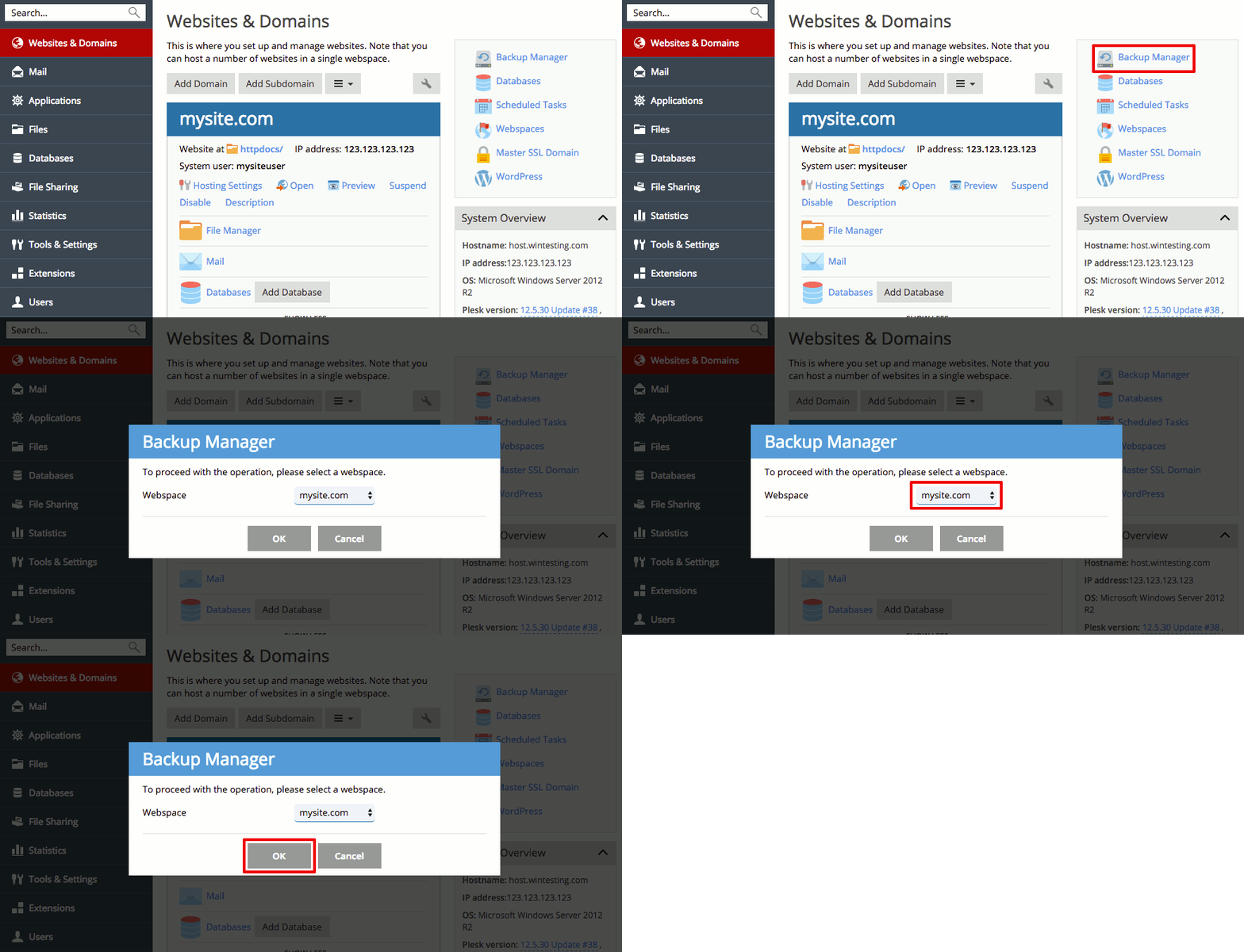
- All of the available backups for the selected domain are listed in order by date. Click on the date of the backup that contains the data you want to restore. This opens the Restore screen.

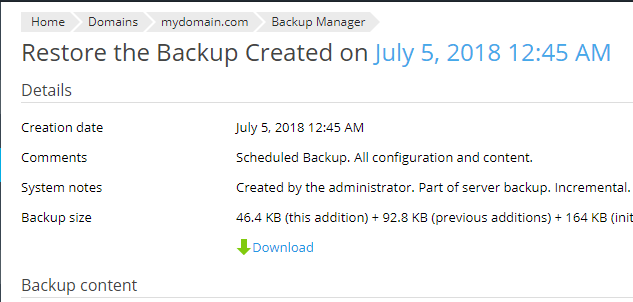
- Choose whether you want to restore Selected Objects or All Objects (Note: only one type of object can be restored at a time, so if you select Mail account, you’ll need to run another restore for the database, etc.)
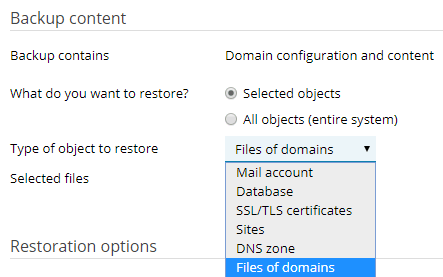
- If you are restoring Selected Objects, choose which items you want to restore (for example, which email accounts of those listed). If you are restoring the whole domain, you can still specify which parts of the domain you would like to restore (domain configuration, Virtual host content, databases, and/or mail).
- Choose whether or not you want to suspend the domain(s) during the restoration process. Checking this option will make sure that nothing is added to the domain during the restoration process. For instance, new email could be received during the restoration which would then be missing due to the restoration process completing.
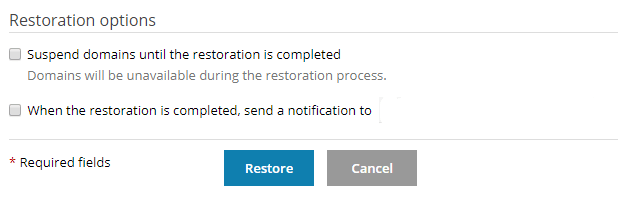
- Finally, if you would like an email sent when the restoration is complete, check the box and enter an email into the text box at the end of the line. To restore the data, click Restore.
NOTE: |
| Restoring data from an earlier date will overwrite any changes since the backup was taken. Be sure that you have copies of any data that might be lost. In fact, taking a backup before a restoration may be beneficial. See our article on Taking a Manual Backup in Plesk. |