

Scheduling Tasks in Plesk
Scheduling tasks is an effective way to manage recurring activities on your server. The Plesk Control Panel makes scheduling tasks a simple process (for more information on using Plesk, see Getting Started with Plesk)
- Log in to the Plesk Control Panel. Go to Tools and Settings, then click on Scheduled Tasks.
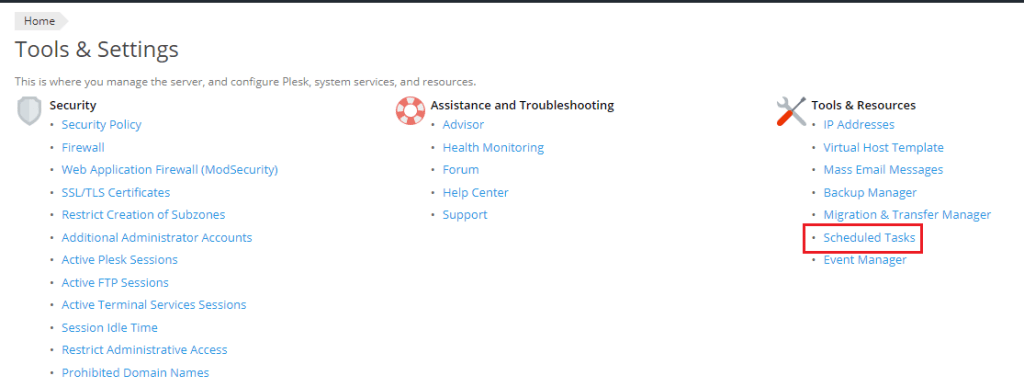
- On this screen, you’ll see all of the currently scheduled tasks. Click Add Task to begin creating a new scheduled task.

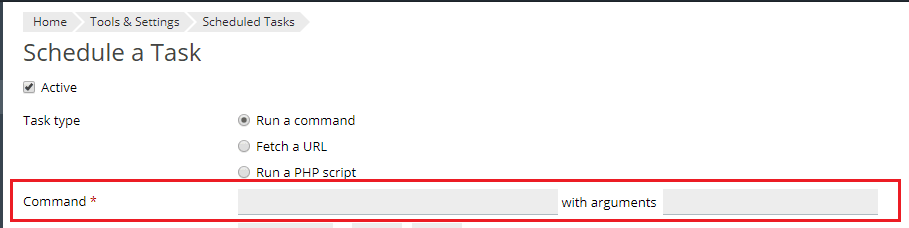
- Choose the task type by clicking on the appropriate radio button.

- Enter the command, URL, or php script to run, along with any arguments to modify the command.
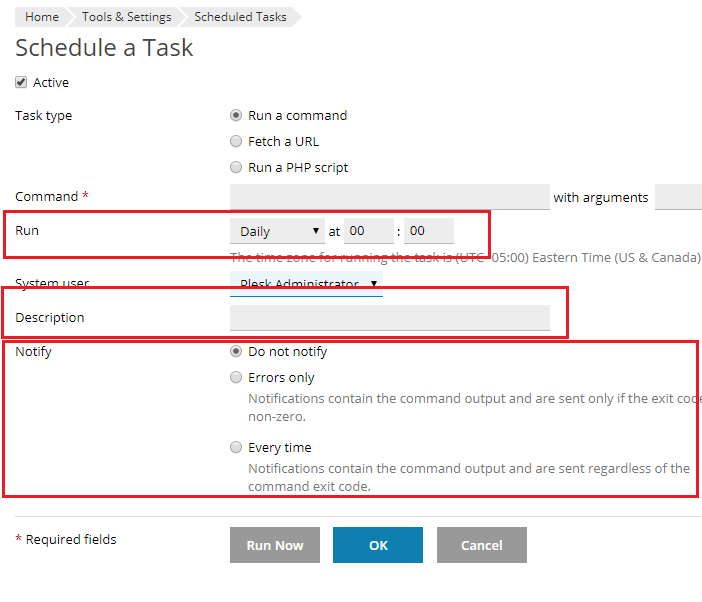
- Now specify how often you want the task run, enter a Description to name the task, and specify how you want to be notified when the task is run.
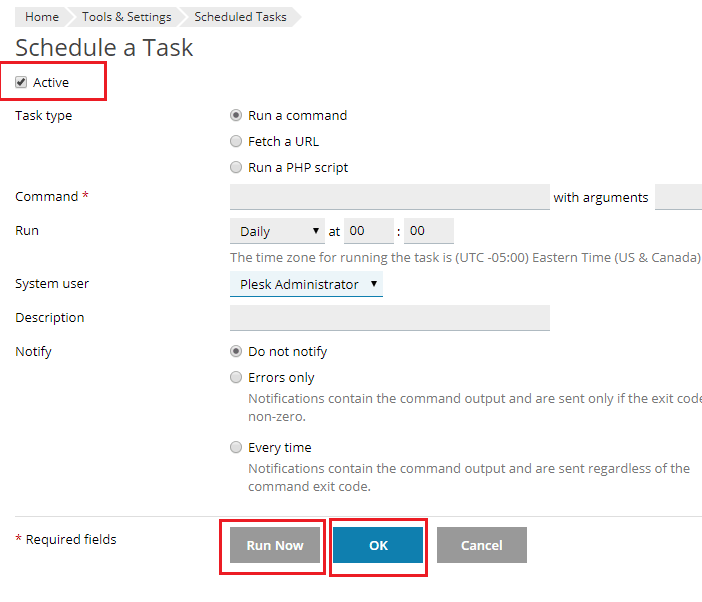
- Finally, you can click Run Now to test the task, or click OK to finish scheduling the task (NOTE: make sure the Active button is checked if you want the scheduled task to run).
If you need more information or for examples of using scheduled tasks in Plesk, see Plesk’s documentation at Scheduling Tasks and Plesk for Linux — Scheduled Tasks Shell Setting.