

Best Practices: Secure Mail Settings for MailEnable for Windows
Setting up a new mail server can be an intimidating process. There are so many possible options that it can be difficult to know which settings are appropriate for your situation. Security settings are especially difficult because the wrong choices could leave your server vulnerable to attack or open to malicious users for sending spam. While the “default” settings recommended by the software vendor are right for most customers, there are a few settings that should be checked to verify that the mail server is configured correctly. This article focuses on MailEnable Mail Server on a Windows OS Server.
MailEnable Settings
Before checking or changing the settings for MailEnable, you first need to be able to find MailEnable’s control panel. MailEnable uses a Microsoft Management Console snap-in (or mmc) control panel. You can generally launch the control panel by going to the Windows start menu and typing “mailenable” into the search bar. You can also launch the control panel directly by finding the file mailenableadmin.msc and double-clicking it. That file will normally be found in the MailEnable file system inside the Admin folder (an example path would be C:Program FilesMailEnableAdminmailenableadmin.msc. This path may be different depending on your installation). Once you’ve launched the control panel, you will adjust the settings in the properties of the SMTP connection.

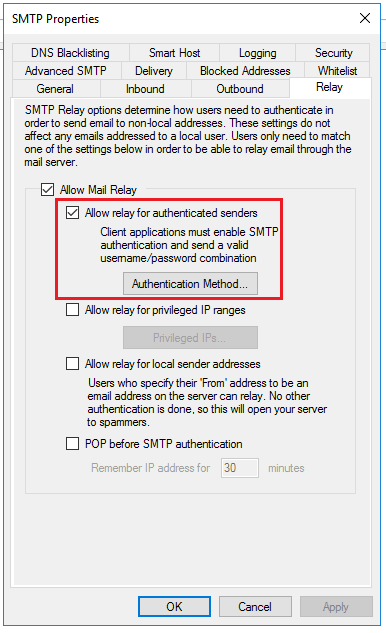
The settings we’re concerned with in this article will be found on the Relay tab in the SMTP Properties.

Allow Mail Relay is the first check box on this tab and it must be enabled if you to be able to send email from this server. Because your computer or phone connect to the server remotely when attempting to send email, the server must be allowed to “relay” that mail to other mail servers. So while we want to prevent an “open relay”, we need to enable some relaying so that legitimate email can pass through the server.
Smtp Authentication
One of the simplest and best ways to prevent your mail server from being exploited is to require smtp authentication for all connections. This means that before anyone (or any script) is allowed to send an email, the user must first provide valid credentials for an account that is hosted on the server. Even web-forms and automated response scripts should use a valid account. This reduces the danger of a malicious user being able to send email through the system.
The first setting below Allow Mail Relay is Allow relay for authenticated senders. Enabling this option means that senders (whether individual users or scripts) that can provide valid credentials will be allowed to send email through the server. You can also select an authentication method by clicking the button labeled “Authentication Method”. Selecting MailEnable/Integrated authentication means that the mail server will use the credentials for the accounts that are created within MailEnable (this is the default setting and it is appropriate for most users).
Open Relays
You’ve probably heard of an email server being flagged as an “open relay” and being abused by spammers. An open relay means that the mail server is configured to accept mail from any sending source and forward that mail to any destination. Spammers use open relays to mask the point of origin for an email, attempting to defeat blacklists and other anti-spam measures.

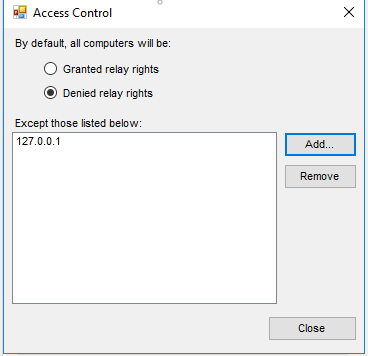
The setting for Allow relay for privileged IP ranges can be checked, but the default setting should be “Denied relay rights” except for the possible exception of the server itself (the IP address of 127.0.0.1). This may be necessary if your website sends emails to verify account registration or similar activities.
Allow relay for local sender addresses should be disabled because this setting depends on the sending computer to report the sender address. It is possible for a malicious user to provide false information (or spoof the source) and send spam through your server.
Secure Passwords
An important part in securing your mail server is requiring all of your users to use strong passwords. Much of the spamming that occurs on compromised servers comes from compromised accounts, not from incorrect settings on the server itself. The free edition of MailEnable does not allow you to create a policy to force the use of strong passwords (although this feature is available in the paid versions of MailEnable). If you are using a Plesk managed server, you can set the password policy to require strong passwords (see Best Practices: Setting a Required Password Strength). For more information on creating strong passwords, see Best Practice: Creating a Secure Password.