

Using SFTP to login as Root
In this tutorial we will be covering how to login to your Cloud VPS as root and how to download backups using an FTP client. FTP Clients enable you to interact and download backups within your server using an interface that is user friendly. When these files are downloaded they will be saved directly to your computer which will give you the ability to share them.
- Using your FTP client (Filezilla is a popular choice), enter your server’s IP address, the username (root in this case) and its associated password. For SFTP, port 22 is the default setting, but may be changed to an alternate port if desired.
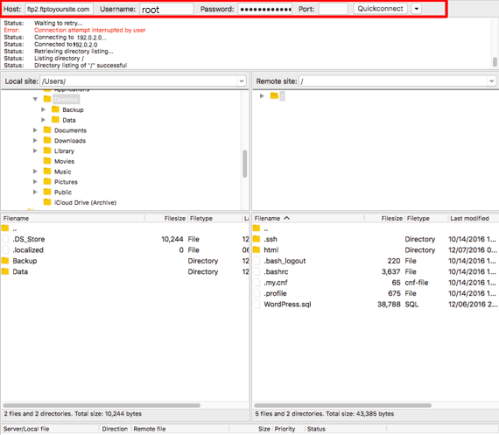
- Click on the backup directory to see your saved backups. You can then click on the name of the backup you want to save and drag it to your local computer to download it.
Note: |
| If you do not find any backups with this directory you can enable them using this helpful guide, Configuring cPanel Backups in WHM. |