

Using ESET Antivirus for Windows
Liquid Web offers a fully-managed anti-virus solution for our Windows servers called ESET. As a fully-managed product, you can leave all the detail work to us. Our system monitors the service, keeps it up to date, and runs real-time scans to help protect your server from viruses. You can also interact with the service directly if you’d like to run an on-demand scan or see recent scan results.
Opening ESET
To open ESET, you just need to use the ESET icon in the taskbar on your server.
- Log in to your server via RDP (see Using Remote Desktop Protocol (RDP) to Log into Your Windows Server).
- Click on the ^ in the taskbar to find the ESET icon.
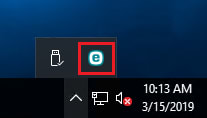
- Right-click on the icon to open the menu and choose Open ESET File Security.

ESET Main Screen
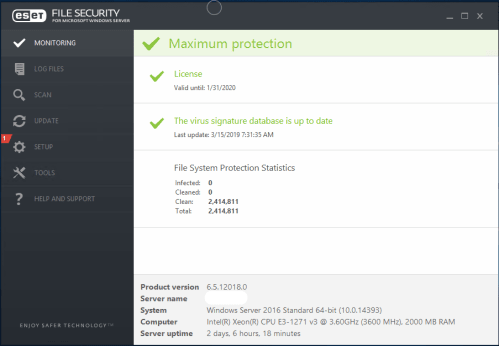
ESET’s main screen shows you the latest update and scan information, as well as details about the server and the product version.
On-Demand Scan
If you’d like to run an additional on-demand scan, you can do that by clicking on the Scan button on the left side of the screen. From the Scan screen, you can launch a Smart Scan, which basically scans and cleans the whole server, or you can run a custom scan if you want to focus on just a select drive, directory, or file.

Scan Results (Logs)
You can go to the Log Files section of the ESET screen to view recent detections, events, scans, etc. Probably the most helpful log is the Detections log, which will detail any recent detections with details about the results of that detection. The Detections log is also the default log showing when you click on the Log Files tab.

If you need any additional assistance with managing ESET, just reach out to our Support team.