

W3 Total Cache Optimization for Cloud Sites
Configuring page cache requires specific settings in Cloud Sites due to its unique infrastructure in order to provide the best experience for a given site. Please use these settings when you are configuring W3 Total Cache instead of the settings in Optimizing WordPress with Caching Plugins. This article assumes you have already installed the W3 Total Cache plugin.
The left navigation menu in your WordPress dashboard will have a new option: Performance after you’ve installed W3 Total Cache. This is where you’ll make changes to your W3 Total Cache setup.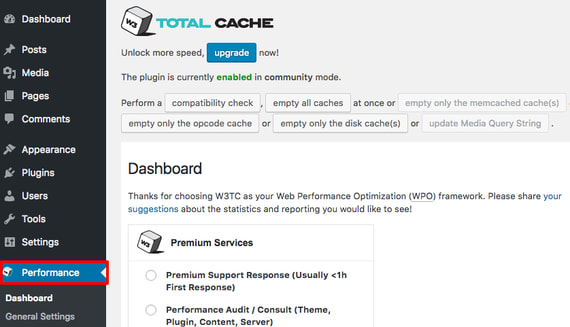
Make sure to click Save all settings as you change these settings so you don’t lose your configurations!
General Settings
In the General Settings section of W3 Total Cache, make sure your settings follow this plan:
Page Cache
- Page Cache: Enable
- Page Cache Method: Disk: Basic
- Click Save all settings.
Minify
- Minify: Enable
- Minify mode: Manual
- Minify cache method: Disk
- Click Save all settings.
Do not enable Database cache or Object cache.
Browser Cache
- Browser cache: Enable
- Click Save all settings.
Miscellaneous
- Select Verify rewrite rules.
- Make sure Enable file locking is not selected.
You can leave all other settings at their default values. Click Save all settings.
Page Cache
In the left navigation menu, click on Page Cache.
General
- Select Cache front page.
- Select Cache feeds.
- Select Cache SSL requests.
- Select Cache URIs with query string variables.
- Do not select Cache 404 (not found) pages.
- Select Don’t cache pages for logged in users.
- Click Save all settings.
Cache Preload
- Select Automatically prime the page cache.
- Select an Update interval. Values here affect the time before a page is recached. 86400 seconds equals 24 hours, 604800 seconds equals one week, etc.
Leave all other settings at their default values. Click Save all settings.
Minify
In the left navigation menu, click on Minify.
General
- Select Rewrite URL structure.
- Click Save all settings.
HTML & XML
In the HTML and XML section, select the following check boxes:
- Enable Inline CSS minification
- Inline JS minification
- Don’t minify feeds
- Click Save all settings.
JS minify settings: Select Enable.
CSS minify settings: Select Enable.
Click Save all settings.
Browser Cache
In the menu, click Browser Cache. Set the following options and then click Save all settings:
General
Select the following checkboxes:
- Set Last-Modified header.
- Set expires header.
- Set cache control header.
- Set entity tag (eTag).
- Set W3 Total Cache header.
- Enable HTTP (gzip) compression.
CSS & JS, HTML & XML, and Media & Other Files
In all three of these sections, select the following checkboxes and options:
- Set Last-Modified header.
- Set expires header.
- Expires header lifetime: Specify 31536000 seconds.
- Set cache control header.
- Set entity tag (ETag).
- Set W3 Total Cache header.
- Enable HTTP (gzip) compression.