

Update Your Premium Business Email Webmail Settings
Your Premium Business Email settings are found on the homepage of your webmail. Here you can configure how your email is displayed, composed, received, set your spam settings and change the password to your email.
From the Email Settings page, you can control:
- To find your Email Settings, navigate to the menu icon in the upper-right hand corner of your webmail homepage, next to your email address.

- Click the Settings link from the drop-down menu.
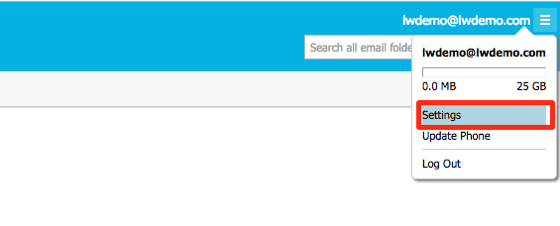
- The Email Settings page will appear as a pop-up window.

General Settings
- Email Options:
- Display Preferences: Choose what you want displayed in incoming emails, allow or block HTML email, external images, and enable keyboard shortcuts. Set up your preview preferences and adjust the number of messages listed per page.
- New Messages: Have an alert sound play when new mail arrives and set the frequency that webmail will check for new messages and display them.
- Trash Options: Move deleted and purged email to the trash folder.

- Calendar: Choose to delete invitations after responding to them or have them stay in your inbox.

- Language & Date/Time: Change the language, date and time format as well as your time zone within your webmail.

Composing Email
- Composing: Set auto-complete, how sent emails are saved, check for blank subjects, and missing attachments in your emails. You can also apply labels to emails you reply to and forward.

- Identities: Add additional email addresses (identities) to send email from. For example, if you have a Gmail account you’d like to use to respond as your identity, add it and set it as the default.

- Signatures: Set a custom signature for your emails. You can choose to have it show when composing, as well as have it also populate in email replies.

Incoming Email
- Auto-Reply: Set an auto-reply for when you are unable to read or reply to emails. You can set this to run for a specific amount of time and it will turn itself off when the end date is reached.

- Forwarding: Automatically forward email to up to 15 additional email addresses (only four can be outside of your domain). It can also be set for a specific time frame to be enabled and will disable itself when that time ends. Learn more about how to forward emails in our article Forwarding Your Premium Business Email.

- Filtering: move emails from specific senders into folders, forward the email or delete them immediately.

Spam Settings
- Preferences: Enable spam filters and how incoming spam messages are handled. See how you can control your spam filter settings in our article Adjusting Spam Filtering in Premium Business Email.

- Safelist: Select domains, email addresses and IP addresses that you know are trusted and not spam and list them in your safelist to help keep them from accidentally being sent to your spam folder. Find out more in our article Safelisting Email Addresses, Domains, and IPs in Premium Business Email.

- Blacklist: If you have domains, email addresses and IP addresses which you know are spamming you, put them in your Blacklist so that any email sent from them never reaches your inbox. Learn how to manage your blacklist in our article Blacklisting Email Addresses, Domains, and IPs in Premium Business Email in Premium Business Email.

Change Password
Change your password at any time, our article Changing Your Premium Business Email Mailbox Password will walk you through the steps.