

Installing a CMS in Cloud Sites
Cloud Sites makes adding a CMS to your account an easy process. With just a few steps, your WordPress, Joomla, or Drupal site will be up and running. This tutorial will take you through installing a new CMS instance in your account. If you already have a CMS and are wanting to add it to your Cloud Sites account, you will need to complete a migration via plugin or FTP once you get the new site set up in your account.
Changing Existing CMS Framework |
| Once you set up a CMS site in Cloud Sites, it cannot be changed to a different CMS instance or to a standard Linux or Windows Framework. |
WordPress Installation
- Log into your Cloud Sites control panel.
- Click on Create Website.

- Enter your Domain name and select WordPress from the drop-down menu in the Application section.

- Click Next.
- You will be directed to enter your CMS information and create the database needed for WordPress.
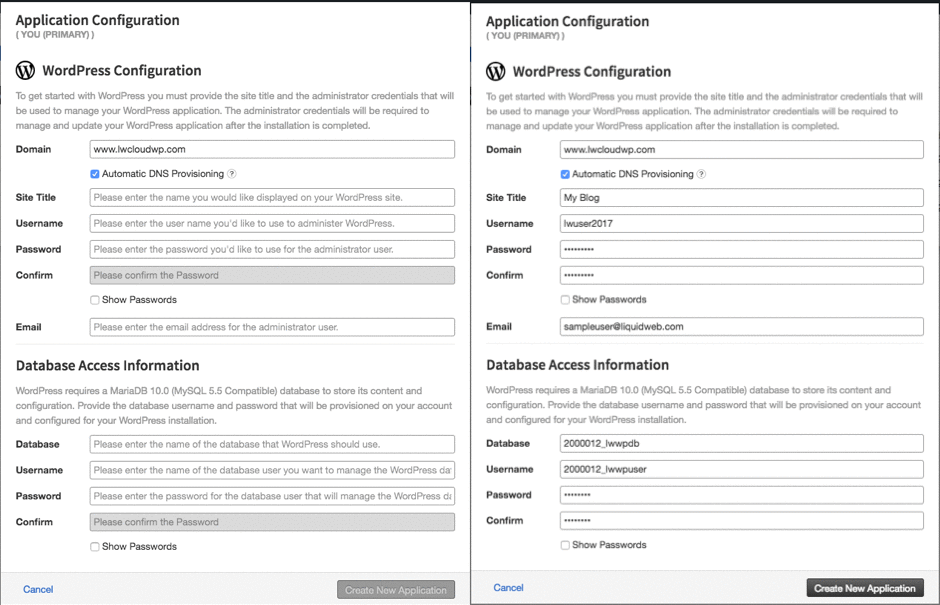
- Click Create New Application to create your new WordPress site.
- Once it is complete, the site will show in your websites list.

Joomla Installation
- Click Create Website from your Cloud Sites home page.
- Enter your Domain name and select Joomla from the drop-down menu in the Application section.
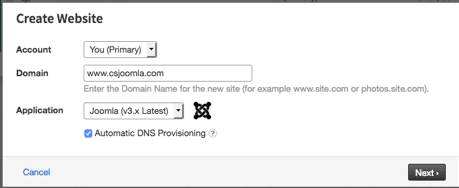
- Click Next.
- You will be directed to enter your CMS information and create the database needed for Joomla.

- Click Create New Application to create your new Joomla site.
- Once it is complete, the site will show in your websites list.

Drupal Installation
- Click Create Website from your Cloud Sites home page.
- Enter your Domain name and select Drupal from the drop-down menu in the Application section.
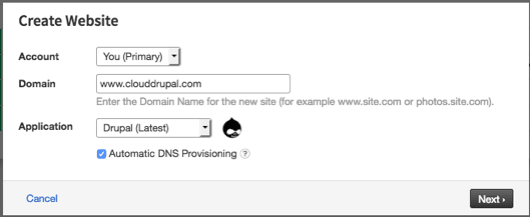
- Click Next.
- You will be directed to enter your CMS information and create the database needed for Drupal.

- Click Create New Application to create your new Drupal site.
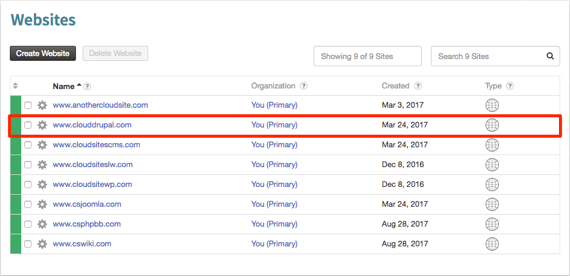
- Once it is complete, the site will show in your websites list.
Media Wiki
- Click Create Website from your Cloud Sites home page.

- Enter your Domain name and select Media Wiki from the drop-down menu in the Application section.

- Click Next.
- You will be directed to enter your CMS information and create the database needed for MediaWiki.
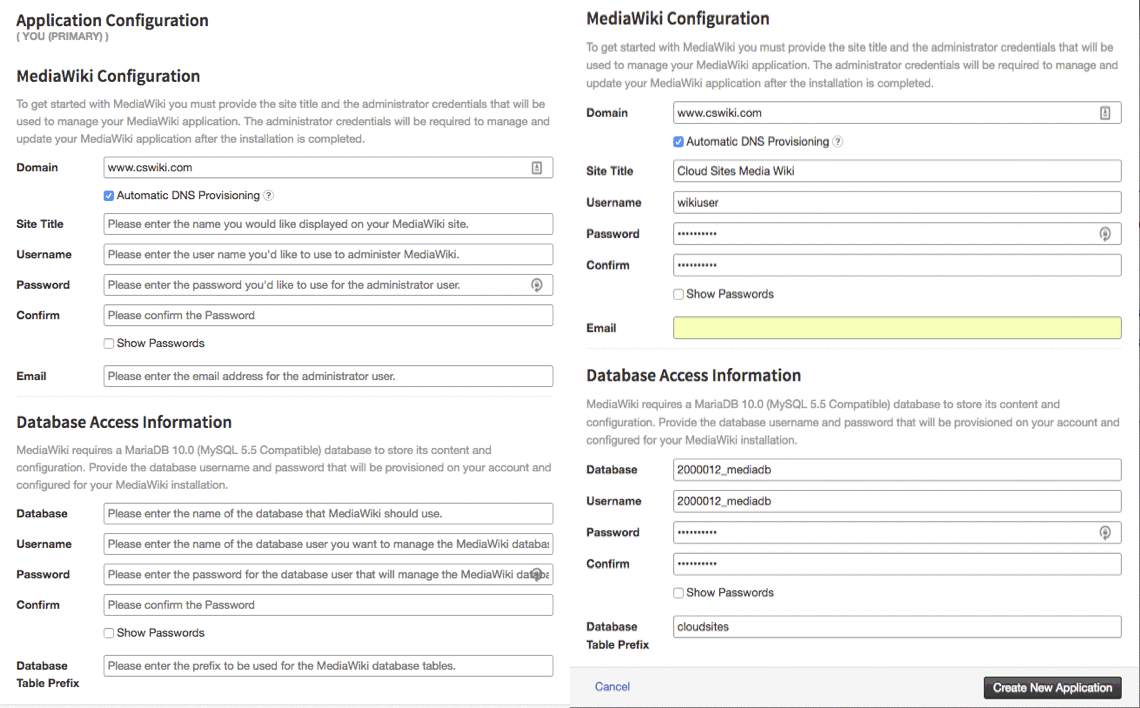
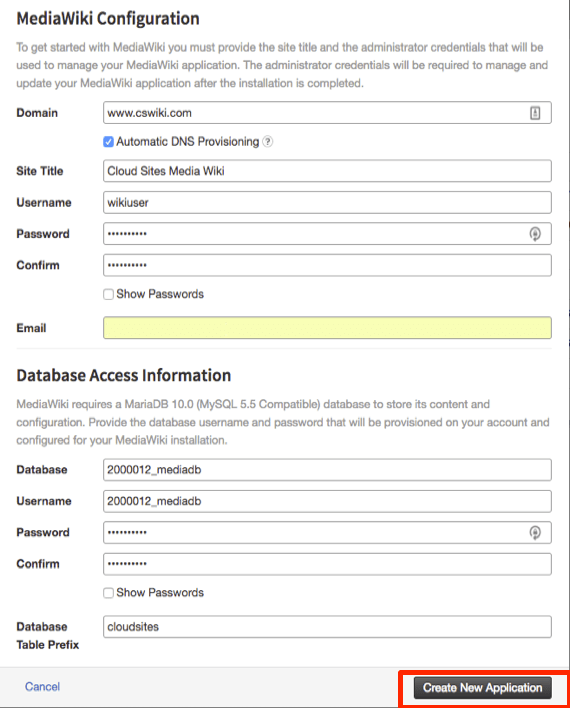
- Click Create New Application to create your new MediaWiki site.
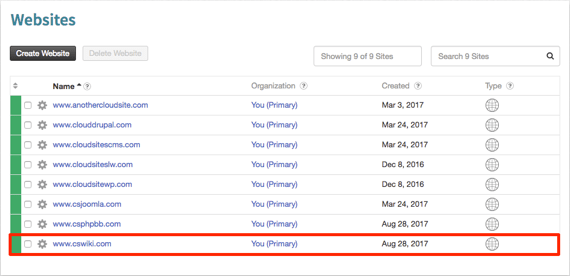
- Once it is complete, the site will show in your websites list.
PHP Bulletin Board
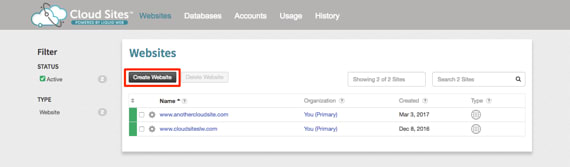
- Click Create Website from your Cloud Sites home page.
- Enter your Domain name and select PHP BB from the drop-down menu in the Application section.
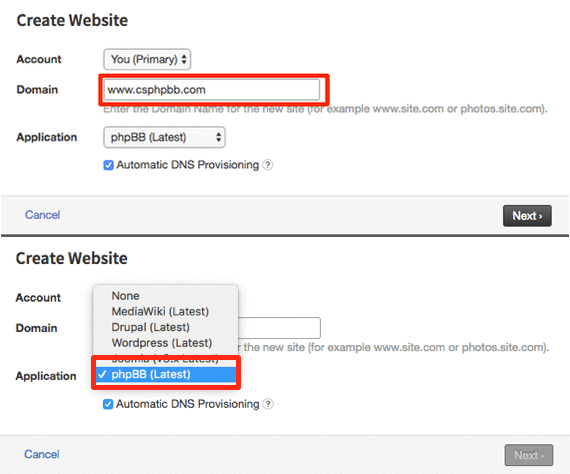
- Click Next.
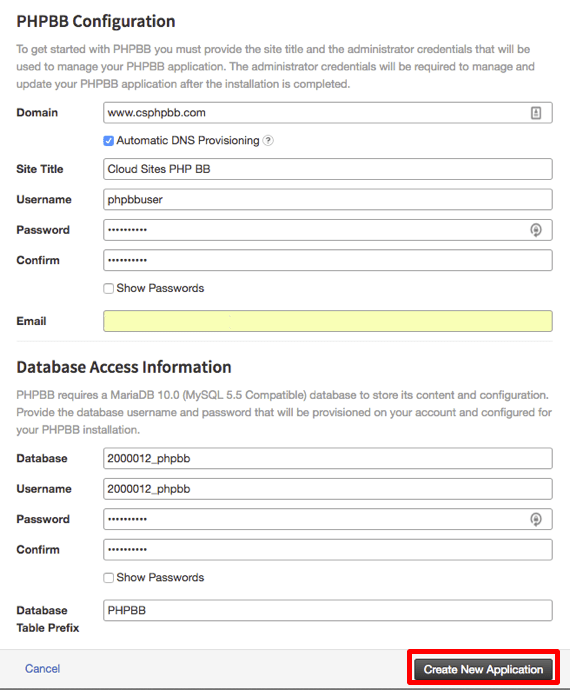
- You will be directed to enter your CMS information and create the database needed for PHP Bulletin Board.

- Click Create New Application to create your new PHP Bulletin Board site.
- Once it is complete, the site will show in your websites list.

If you are looking to create a website using a Linux or Windows Framework, please see our article Adding a Website to Cloud Sites.