Deleting a VM in VMware Multi-Tenant
One of the advantages of VMware is the ability to create or delete VMs as your computing requirements change. Deleting a VM is relatively easy (make sure you no longer need the VM or have backups of the data in case of emergency. This cannot be undone!)
- Log in to your Virtual Data Center (VDC). For help logging in, see Logging in to the VDC in VMware Multi-Tenant.
- Click the box containing the details of the VDC from which you want to delete the VM.
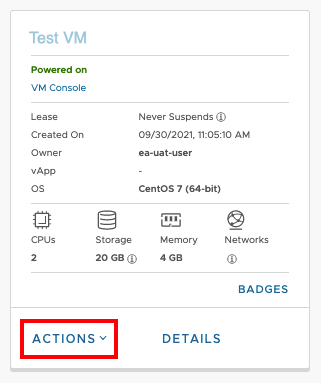
- In the Virtual Machines section, click Actions.
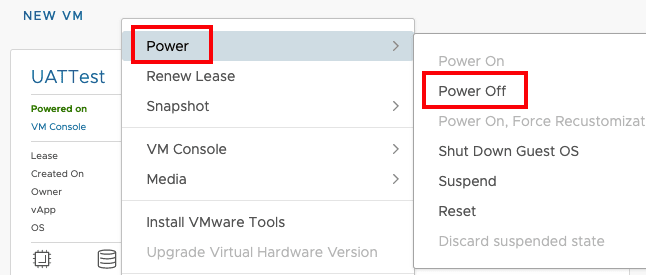
- Select Power and Power Off the VM.
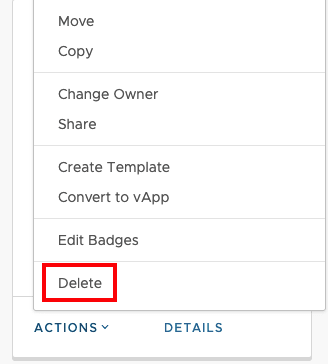
- Select Delete to Delete the VM.