

Change a VM password in VMware Multi-Tenant
Good security practices encourage updating the passwords on your server on a regular basis (see Best Practices: Securing Your Computer). The same idea applies to the Virtual Machines (or VMs) in your VMware Multi-tenant account.
Changing the root (or administrator) password in a VM is done in the same way that you would change the password for any other server (see Changing Your Root Password in WHM or Changing Your RDP Password). However, once you change the server password, your VDC will also need to be updated in order to manage your VM correctly.
Changing the VM password in VDC
After you change the root or administrator password in a VM, you should also update the password for the VM in the VDC to allow automations to continue to work correctly.
- Log in to the VDC that controls the VM that you have updated.
- Select the hostname of the VM from the list of Virtual Machines.
- Click Guest OS Customization from the list of options.

- Click the Edit link.

- Check the box next to Enable Guest Customization.
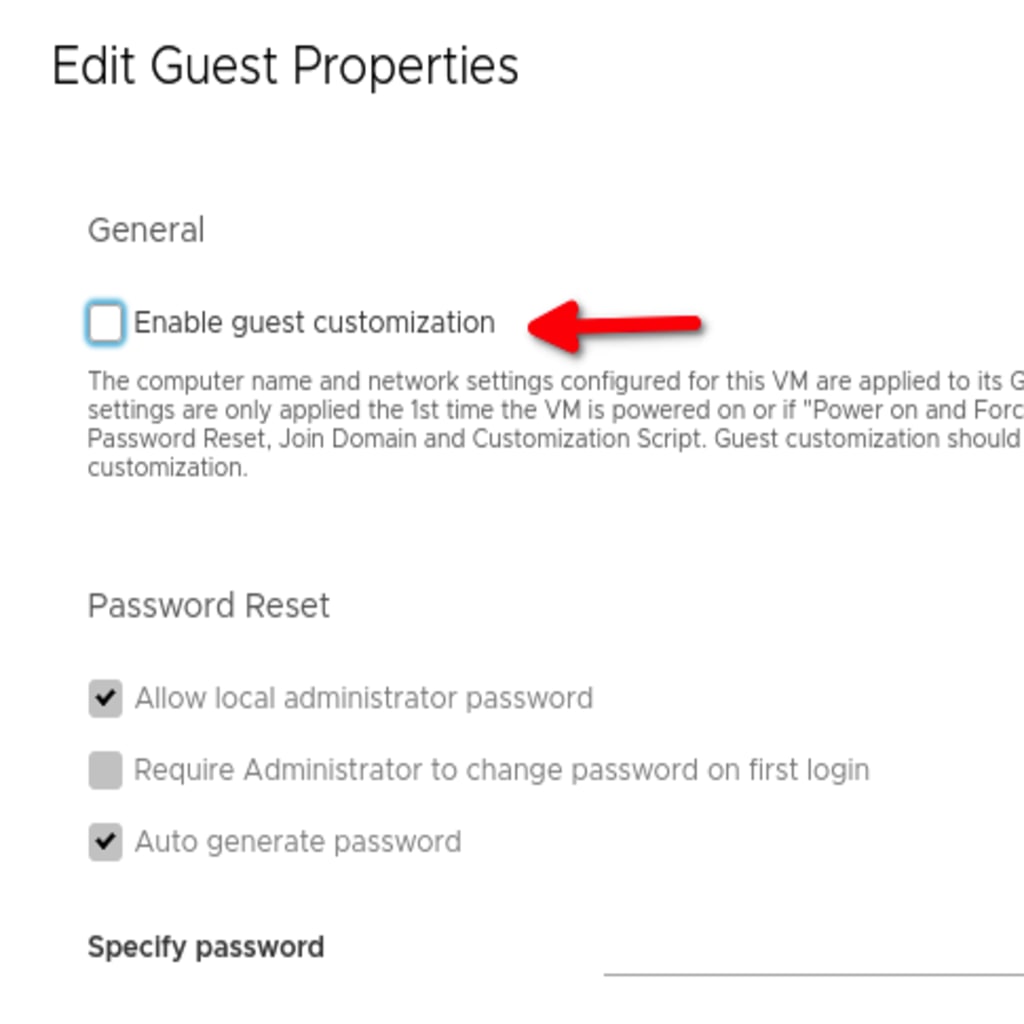
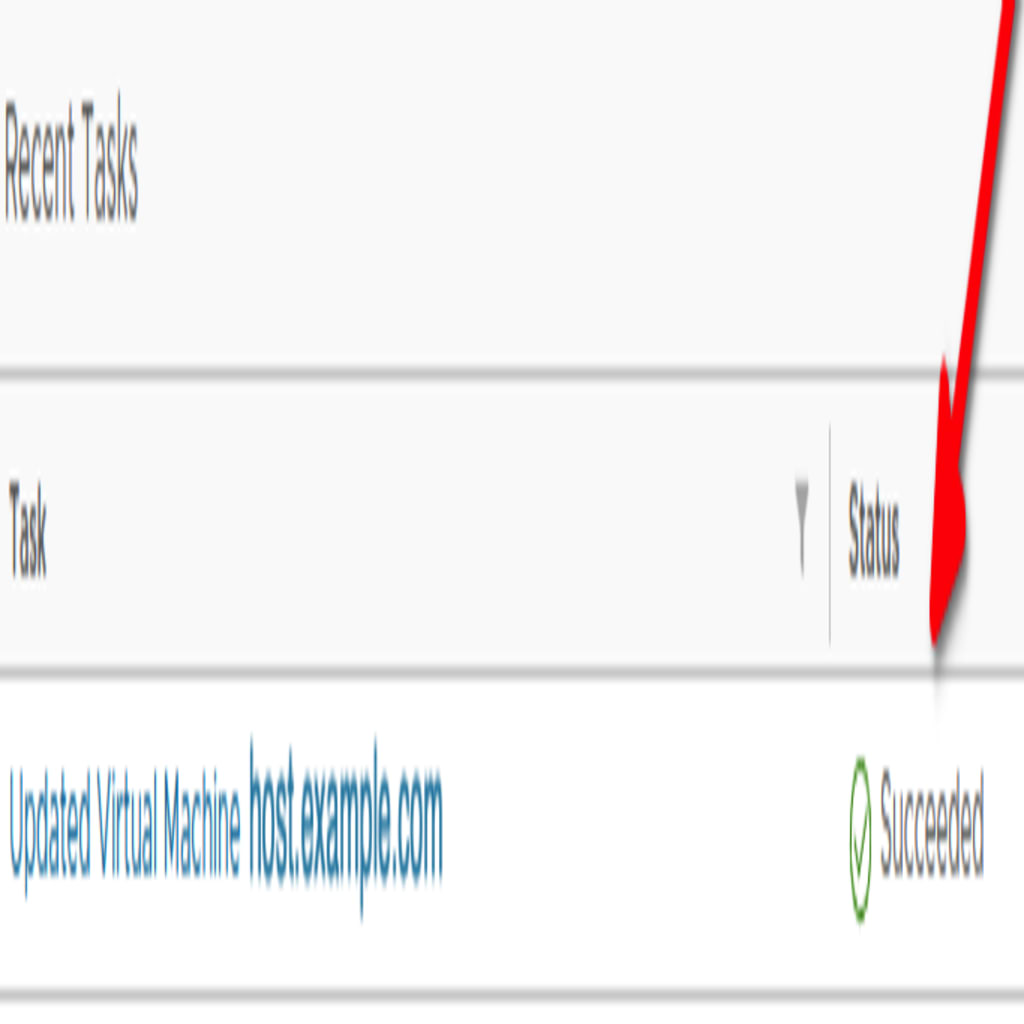
- Uncheck the Auto Generate Password option and enter the new secure password that you set in the VM for the root or administrator account. Apply the changes and wait for the message to indicate that the password was updated successfully.

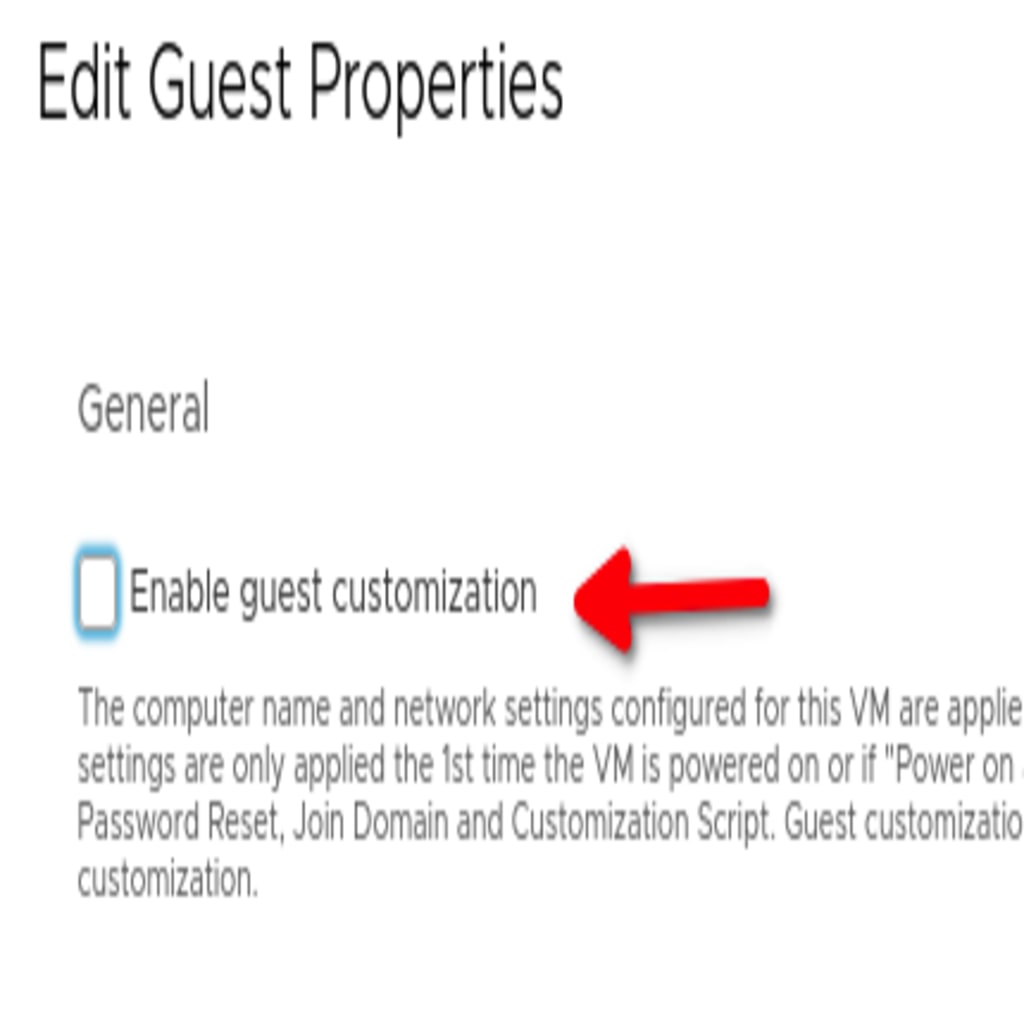
- Disable Guest OS Customization by clicking Edit, then unchecking the box beside Guest Customization and saving your changes.
The VDC password now matches the password you set in your VM and the automations within the VDC should function correctly with your VM.
NOTE: |
| The VDC will update Liquid Web records with the new password that you entered during the Guest Customization process. You do not need to report your new VM password to update Liquid Web files as the VDC will update those records daily. If for some reason you need to communicate the password to our Support Team, please use a Secure note to securely share the password. |