

Reboot your VPS
Your Virtual Private Server (VPS) is the backbone of your online presence – powering websites, applications, and critical business operations. But like any system, it sometimes needs a fresh start. Whether your VPS is sluggish, experiencing software glitches, or undergoing maintenance, a well-timed reboot can resolve issues and keep things running smoothly.
However, not all reboots are created equal. Restarting your VPS the wrong way – or at the wrong time – can lead to unexpected downtime, data loss, or even system corruption. That’s why knowing how and when to reboot is essential for any server owner.
This guide will walk you through everything you need to know about rebooting your VPS the right way.
Key points
- Rebooting your VPS helps resolve performance issues, apply updates, and recover from system crashes.
- A soft reboot is a graceful restart that shuts down processes properly, while a hard reboot forces an immediate restart and should only be used when necessary.
- Common reasons for rebooting include software updates, slow performance, system crashes, and configuration changes.
- Before rebooting, check server load, notify users, back up data, apply updates, review system logs, and verify service restart settings.
- You can reboot your VPS through WHM (Web Host Manager), SSH commands, or your hosting provider’s management portal.
- After rebooting, verify that websites, applications, and essential services (Apache, MySQL, etc.) have restarted correctly.
- Liquid Web’s VPS hosting provides easy reboot options, quality Support℠, and managed backups to ensure a smooth and secure restart process.
What is a VPS reboot and when do you need it?
A virtual private server reboot is the process of restarting your virtual private server to refresh its operating system, apply updates, or recover from issues. Just like rebooting a personal computer can clear out temporary glitches and improve performance, rebooting a VPS can do the same for your hosted applications and websites.
However, not all reboots are the same. Depending on the situation, you may need a soft reboot or a hard reboot.
Soft reboot vs. hard reboot
A soft reboot (graceful restart) is the safest way to restart your VPS because it properly shuts down running processes before restarting the system. It sends a signal to the operating system to gracefully shut down all running processes before restarting. This ensures that data is saved and no files get corrupted.
Use a soft reboot when:
- Installing software updates or patches.
- Restarting services after configuration changes.
- Fixing minor performance issues without forcing shutdown.
Meanwhile, a hard reboot (forced restart) is a more aggressive method that immediately restarts the server, regardless of what’s running. It’s similar to pressing and holding the power button on a computer – it cuts power and forces the system to restart.
Use a hard reboot when:
- Your VPS is completely unresponsive.
- You’re dealing with a system crash or frozen applications.
- A soft reboot fails to work.
⚠️ Warning: Since a hard reboot doesn’t properly close running processes, it can lead to data loss or corruption. It should only be used as a last resort.
Common scenarios requiring a VPS reboot
Here are some of the most common reasons why you might need to restart your server:
- Software updates and security patches: Many system updates require a reboot to apply changes properly. This includes security patches that protect your VPS from vulnerabilities.
- Server performance issues: If your VPS is running slow or experiencing memory leaks, a reboot can clear temporary processes and free up system resources.
- Configuration changes: When making changes to critical server settings, such as modifying firewall rules or installing new software, a reboot helps apply those changes effectively.
- Hardware maintenance and replacements: In some cases, hosting providers perform hardware upgrades or replacements that require a system reboot.
- System crashes and freezes: If your server becomes unresponsive due to software conflicts, memory overuse, or other critical issues, a hard reboot may be the only way to restore functionality.
Before you reboot: Server maintenance checklist
Before hitting that restart button, take a few minutes to go through this server maintenance checklist to ensure a safe and smooth reboot:
- Check server load and active processes
Check if your server is under heavy load or running critical tasks. A restart during peak usage can disrupt services and cause failed transactions or lost data.
How to check:
- For Web Host Manager (WHM)/cPanel users: Navigate to your WHM > Server Status > Server Information to see resource usage.
- For command line users: Use the top or htop command in SSH to monitor active processes.
If your VPS is running important tasks, consider scheduling the reboot for a low-traffic period to minimize disruptions.
- Notify users and schedule downtime (if needed)
If your VPS hosts a website, application, or database used by clients or employees, let them know about the reboot in advance. Unexpected downtime can frustrate users and affect business operations.
Best practices to follow include:
- Post a maintenance notice on your website or send an email alert.
- Schedule the reboot during off-peak hours to minimize the impact.
- If you’re running a mission-critical application, consider setting up a temporary backup server.
- Back up your VPS data
This is non-negotiable. Even though a reboot is usually safe, there’s always a small risk of data corruption, software failure, or unexpected issues. A backup ensures you can restore your server quickly if anything goes wrong.
Here are some backup methods:
- For WHM/cPanel users: Use WHM > Backup Configuration to create a full system backup.
- For SSH users: Use the tar command to manually back up important files.
- For Liquid Web customers: Use Liquid Web’s cloud backups to take a full snapshot of your VPS and restore it whenever you need to.
⭐ Bonus tip: Store backups in a remote location (not just on the VPS itself) for extra security.
- Apply pending updates and patches
If you’re rebooting to apply system updates, make sure everything is fully installed before restarting. Interrupting an update mid-way can cause software conflicts or failed installations.
Here’s how to check for updates:
- CentOS/RHEL: Run yum update
- Ubuntu/Debian: Run apt update && apt upgrade
- Windows VPS: Go to Settings > Update & Security > Windows Update.
- Review system logs for errors
Scan your system logs for any warnings or errors. This can help identify potential issues that might cause problems after the restart.
Check logs with these commands:
- Linux: Run the command:
cat /var/log/syslog or cat /var/log/messages- Windows: Use Event Viewer (eventvwr.msc) to check for warnings.
If you see repeated errors or warnings, investigate and resolve them before proceeding with the reboot.
- Verify that all services will restart properly
After a reboot, your VPS should automatically bring up all critical services (web server, database, email, etc.). Make sure these services are set to start on boot to avoid unnecessary downtime.
Here’s how to check startup services:
- For Linux users: Run the following code:
systemctl list-unit-files --type=service | grep enabled- For Windows users: Use Task Manager > Startup to review startup applications.
If you rely on MySQL, Apache, or Nginx, double-check that these services restart automatically after rebooting.
Final check before rebooting
- No heavy server load or active processes?
- Users notified & downtime scheduled (if needed)?
- Recent backups stored safely?
- All updates installed and completed?
- No major errors in system logs?
- All essential services set to restart on boot?
If you’ve checked all these boxes, you’re ready to reboot your VPS safely.
How to reboot your VPS
Now that you’ve completed the pre-reboot checklist, it’s time to restart your VPS. The three most common ways to do this are:
- Via a Web Host Manager (WHM) – for users with web host manager access.
- Via SSH/command line – for advanced users comfortable with terminal commands.
- Through your Liquid Web account – (for quick and easy reboots via the customer portal).
Method #1: Rebooting via WHM (Web Host Manager)
WHM provides an easy, GUI-based way to restart your VPS, making it ideal for users who prefer a control panel over command-line operations.
Here are the steps to reboot your VPS via a WHM:
- Log into WHM using your root credentials.
- In the left-hand menu, navigate to System Reboot under the System section.
- You’ll see two reboot options:
- Forceful Server Reboot – equivalent to a hard reboot; use only if necessary.
- Graceful Server Reboot – a soft reboot that allows processes to shut down properly.
- Click on Graceful Server Reboot for a safe restart.
WHM will confirm that the reboot has started. Your VPS will go offline briefly and come back online in a few minutes.
This approach is ideal if you:
- Are managing a cPanel/WHM-based VPS.
- Prefer a user-friendly, graphical interface.
- Want a safe, controlled reboot without needing to use SSH.
Method #2: Rebooting via SSH/command line
For users comfortable with the Linux command line, rebooting via SSH is a quick and powerful way to restart your VPS. This method is especially useful for headless servers or situations where you can’t access WHM or a control panel.
Here are the steps to reboot your VPS via SSH:
- Open an SSH client like PuTTY (Windows) or use the terminal (MacOS/Linux).
- Connect to your VPS by entering:
ssh root@your-server-ip- Enter your root password when prompted.
- To perform a soft reboot (preferred method), run the following command:
rebootor
shutdown -r nowThis will restart your VPS gracefully, allowing services to close properly before rebooting.
- To perform a hard reboot (only if necessary), use:
echo 1 > /proc/sys/kernel/sysrq
echo b > /proc/sysrq-trigger
⚠️ Warning: This immediately restarts the VPS without shutting down processes properly. Use it only if a soft reboot isn’t working.
This approach is your go-to if:
- You need direct control over the reboot process.
- WHM or other control panel access is unavailable.
- You prefer using Linux commands to manage your server.
Method #3: Rebooting through your Liquid Web account
Liquid Web provides an easy way to reboot your VPS through your portal.liquidweb.com account, making it a convenient option if you don’t want to access WHM or SSH.
Here are the steps to reboot your VPS via Liquid Web:
- Log in to your Liquid Web account at portal.liquidweb.com.
- Navigate to Servers in the left-hand menu.
- Click the name of your VPS from the list to open the Server details page.
- Click the Reboot button.

- When you click the Reboot button, you’ll be presented with some additional choices.

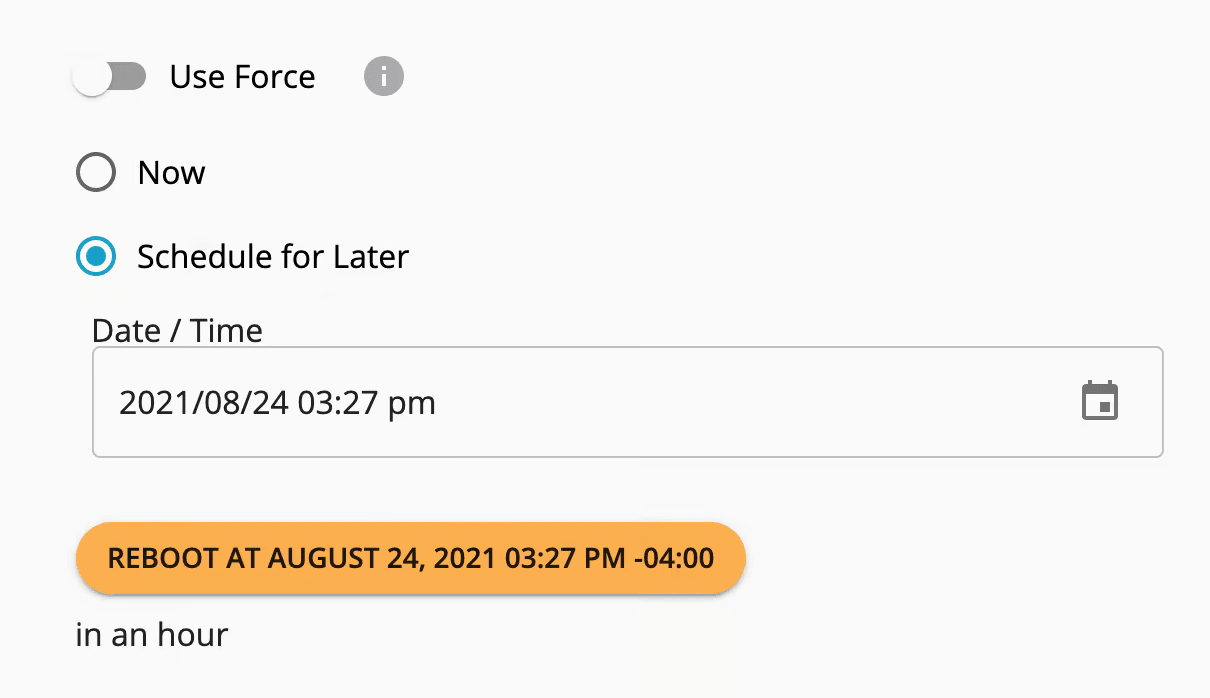
- Click on Schedule for later to schedule the reboot for a more convenient time/day. Click on the calendar icon to specify the date and time for the reboot.

- This will open the Task Scheduler dialogue. Click on the date or the time to adjust as needed.

- You can see and manage your scheduled tasks by clicking Scheduled Tasks in the Servers menu.
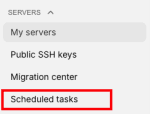
- You can also choose to enable the Force Reboot option if the server is unresponsive. This is the equivalent of powering off the server and is not recommended unless the server is unresponsive.
Your VPS should be back online within a few minutes.
This option is the best if:
- If you don’t have access to WHM or SSH.
- If you want a quick and hassle-free reboot.
- If your VPS is unresponsive and needs a remote reboot.
And remember – once your VPS is back online, it’s important to verify that everything is working correctly.
FAQ: Common questions about rebooting your VPS
Here are some of the most frequently asked questions about rebooting a VPS, along with expert answers to help you out:
1. How often should I reboot my VPS?
You don’t need to reboot your VPS regularly unless there’s a specific reason, such as installing updates, fixing performance issues, or troubleshooting errors. Many servers run for weeks or even months without needing a restart. However, a periodic reboot (once every few months) can help refresh system processes and clear up memory leaks.
2. Will rebooting my VPS cause data loss?
A properly executed soft reboot will not cause data loss. However, if you perform a hard reboot while critical processes are running, there is a risk of corruption or loss of unsaved data. Always back up your VPS before rebooting to ensure data safety.
3. How long does a VPS reboot take?
A typical VPS reboot takes 1-5 minutes, depending on factors like system load, installed software, and whether updates are applying. If your VPS is taking significantly longer to reboot, check your server logs for errors.
4. What should I check after rebooting my VPS?
After rebooting, confirm that everything is running smoothly by:
- Checking if your websites and applications are online.
- Verifying that essential services (Apache, Nginx, MySQL, etc.) have restarted.
- Reviewing system logs (/var/log/syslog or Event Viewer in Windows) for any issues.
- Running server performance checks to ensure normal load levels.
5. Can I schedule a VPS reboot for a specific time?
Yes! You can:
- Schedule a reboot using cron jobs (Linux) or Task Scheduler (Windows).
- Manually restart your VPS during off-peak hours to minimize disruptions.
- Do it via Liquid Web. When you click on the Reboot button like we need previously in this article, in the pop-up, click More Options and you’ll be able to schedule the reboot for a more convenient time.
You will see the progress of the reboot in the Alerts section and by the server name in the Server details screen.

You can cancel any scheduled task by clicking on the three dots to the right of the task.

You can monitor the progress in the Alerts section and by the server name in the Server details screen. Once the reboot is complete, your server should show as Running in the status section for the server.
6. Does rebooting a VPS clear its cache?
Yes, a reboot will clear the temporary system cache, which can help improve performance.
7. What’s the difference between restarting a VPS and restarting Apache/MySQL?
Rebooting your VPS restarts the entire server, including all running processes. Restarting Apache (service apache2 restart) or MySQL (service mysql restart) only restarts those specific services without affecting the rest of the server.
If you’re experiencing issues with just one service, try restarting it first before rebooting the whole VPS.