

What is Liquid Web Object Storage?
Introduction
Cloud Object Storage is a service that can be used to store and access files via HTTP/HTTPS. Our Object Storage service is very similar to Amazon’s S3. Unlike our Cloud Block Storage, which essentially attaches to your server as an extra file system, Object Storage files are located inside of a resource that’s known as a “bucket” and there can be multiple buckets for each account. Each bucket can contain multiple directories (folders), which can hold multiple files, such as .jpg .iso .mp3 .css .js .html etc etc etc. You can see how to add a bucket to your Object Storage in the Create a Bucket section at the bottom of this article.
The main point of Object Storage is to store files in a location completely separate from your server yet still easily retrievable. The most common functions Object Storage is used for are to store backups and store image files. Using Object Storage for backups frees up disk space on your server and storing image files allows your server to focus on processing PHP scripts and SQL queries instead of having to load images as well.
Ordering Object Storage is very easy and so is setting it up. Just log into your Liquid Web account to get started!
Step by step instructions
- Log in to your Liquid Web portal.
- Click Storage in the left side menu and select Cloud Object Storage.

- Click the Add object storage button to create your object storage.

- Your Access Key and Secret Key will appear. These keys will be used to access your Object Storage. You can click the “eye” icon to view the secret key.

Creating Buckets in Object Storage
Before you can start storing your backups and images in Cloud Block Storage, you will need to create the buckets that your files will be kept in. This tutorial will walk you through installing the software needed to easily access your files after the bucket is created. Let’s take a look at how to create your buckets and download the graphic interface you’ll need to interact with your files since FTP does not work with Object Store.
- First, we need to create an Object Storage store within your Liquid Web account for you to store your files. Anytime you interact with Object Storage, you will need your Access Key and Secret Key. These are found on the home page of your account in the Storage section. These are your credentials which will be used whenever you interact with your Object Storage.
DragonDisk is a third-party software that provides a graphical interface to help you interact with your files when using Cloud Object Storage. Any issues with the service fall outside our support offerings. For more information about support, see Management and Support Levels.What does DragonDisk Do?A utility like DragonDisk is very helpful for retrieving files from your Object Storage. Once you download the software, setup takes just a few moments and you are ready to interact with your files in Object Storage. |
- After you’ve installed the file from the link above for DragonDisk, you will need to set up the Service Endpoint, meaning the name of your Object Storage, this is where the bucket will be created. Enter objects.liquidweb.services into the text field as shown below.
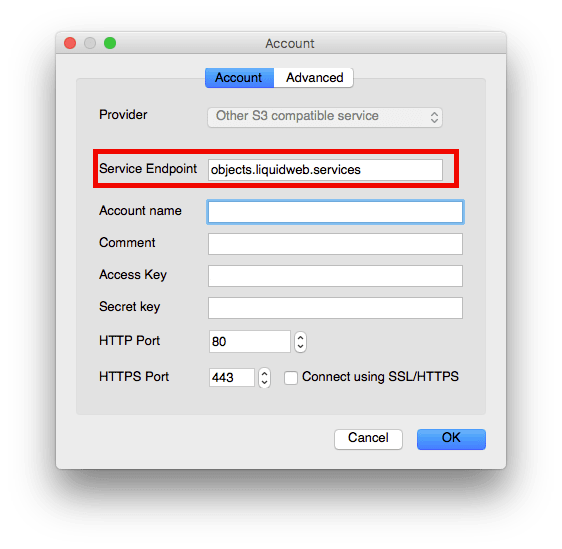
- Enter an account name, this can be anything you’d like, but we suggest it be different than your username for your Liquid Web account for security purposes.

- Enter the Access Key and Secret Key.
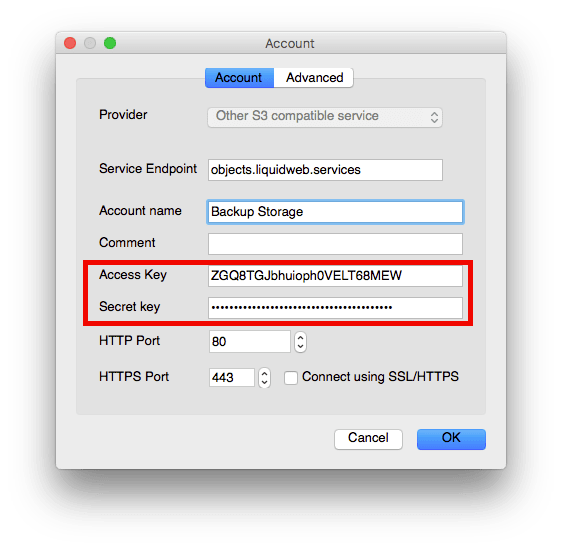
You’re all set now! You’ve set up DragonDisk so you will be able to access your newly created bucket to access your files later. Check out our articles on using Object Storage to start using it to help save disk space on your server: