

Acronis Backups for Cloud VPS
Liquid Web now offers backups from Acronis as part of an effective backup strategy for your Cloud VPS and Cloud Dedicated servers. To learn more about a good backup strategy, see Best Practices: Developing a Backup Plan. You can order and manage Acronis backups from your portal.liquidweb.com account.
If you already have Cloud VPS or Cloud Dedicated Backups enabled on your account, you may need to switch from Cloud Backups (from Liquid Web) to Acronis Backups to start using Acronis Backups.
- In your Liquid Web account, click on View your servers, then select the server you want to create the backup for by clicking on the server name. This will open your server details page.

- On the server details page, click the Backups & Images tab.

- To use Acronis Backups as your Cloud VPS backup solution, you may need to switch from Cloud Backups to Acronis Backups. NOTE: Selecting Acronis Backups will remove access to any Cloud Backups from your portal.liquidweb.com account. If you aren’t using any Liquid Web backups, click Set up now to get started.
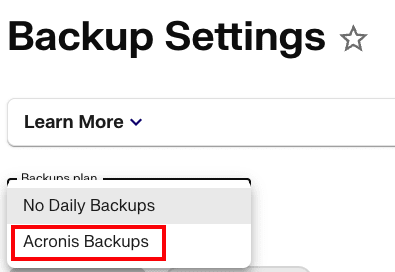
- From the Backups Plan drop-down menu, select Acronis Backups.
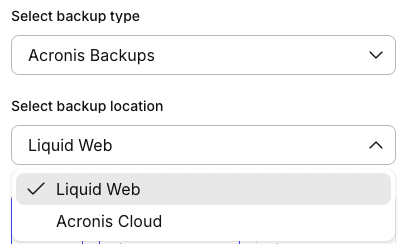
- Select which type of Acronis Backups you’d like to use: either Liquid Web hosted (off-server but in the same data center as your server) or Acronis hosted (both off-server and off-site).
- Select the size of Acronis Backups you’d like to begin with. You can adjust the size of your backup quota up or down as needed in the future.

- Click Buy now to finalize your selection. From the cart, you can see the details of the backup configuration. You can also see the subtotal for the Acronis Backups purchase. Click Place your order to complete your order.
You’ve now ordered Acronis Backups for your Cloud VPS. To start working with your Acronis Backups, see Accessing Acronis Backups.
At the left of the console window, you can see the status of your connection, either Connected or Disconnected.
At the left of the console window, you can see the status of your connection, either Connected or Disconnected.