

Change Your Support Passphrase
Liquid Web is committed to your account security. When reaching out to us via one of our support methods, we may ask you to provide your ‘support passphrase’ in order to verify your identity. Every account user created at Liquid Web is provided a randomly generated passphrase at the time of purchase on our website. If you do not like the randomly generated passphrase, you can log into your account and set the passphrase to something you will remember easily.
Viewing your support passphrase
- Log into your Liquid Web account.
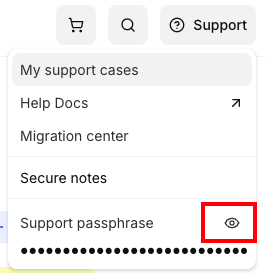
- To view your passphrase, click on the Support icon.

- In the drop-down menu, click the Eye icon to view your support passphrase.
Changing your support passphrase
- Log into your Liquid Web account.
- To change your passphrase, click on the Account tab, then click Manage Users.

- Click on the name of the account for which you want to change the account support passphrase.
- This will open the User Profile modal from the right side of the screen. Scroll down to the Security section.

- Click the Eye icon to view the passphrase. To change the passphrase, enter the new passphrase and click Save changes.
Authorized Users
Every authorized user on your account will have their own login and support passphrase.
To avoid potential security issues, do not share your passphrase with anyone.
If someone needs access to contact us, create an account for them and have them set up their own support passphrase (see Creating an Authorized User in Your Account).
Only users with the Manage Support Requests permission will receive a User Level Support Passphrase. For more information, see User Level Support Passphrases.