

Cloning a Cloud VPS
While you can clone a server to create a staging and development environment from your current sites and server configuration, there’s a better way to perform that function, see our article Creating a Staging and Development Environment. So, why would you clone your server? Well, sometimes, depending on the server you have, a clone may be the only way to allow a resize of your server. This tutorial will walk you through how to clone your server to resize it.
Warning: |
| A cloned server should not be created to be used as a backup for your current server, as any changes made on the original server after the cloning process will not transfer to the other. For information on backups, please see our article Creating a Backup of Your Cloud VPS. |
Clone Your Server
- Log into your Liquid Web account.
- Click on Servers in the left menu bar.

- Click on the Server Name of the server that you want to clone.
- Click on the three dots to the right of the server name and select Clone Server from the drop-down menu.
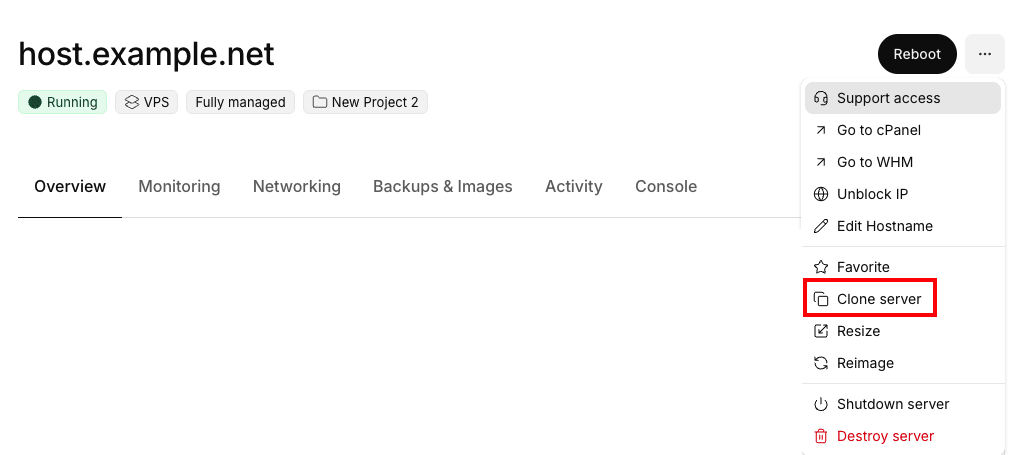
- A Clone VPS dialog window will open, explaining that cloning the server involves adding a server with the same configuration options as the current to the cart where the new server can be further modified or configured. Click ADD TO CART to continue.

- Now that the configuration is added to the cart, you can customize the order as needed, including modifying the hostname, adjusting resources, or deleting the order. Click on Details to view the details of the current configuration.
Cloning and Resizing At the Same Time |
| You can clone and resize your Cloud VPS at the same time. You can choose a larger or smaller server, but if you are downsizing, be sure that the data you have on the server you are cloning will fit on the smaller server. |
- Checkout to complete the ordering process. Once the order is complete, the original server will be cloned and the new server will be available in your account when completed.