

Configuring Backups in Plesk
Backups are necessary in case something happens to your website or your server. Think of it as insurance for your website. Plesk backups are best used as part of a backup strategy. A backup strategy might include periodically backing up your server files to a local computer, a secondary server at Liquid Web, a server not at Liquid Web, or a combination of any of these options. Your backup strategy will depend on how you use your server. We also recommend backing up your domain or server if you plan on making major changes to your website or server.
Because backup configurations depend on your needs, backups are not generally automatically scheduled. We highly recommend scheduling backups in Plesk. In Plesk, you can back up individual domains as well as your whole server.
Backing Up a Domain
- Log into Plesk. If you haven’t logged into Plesk before, read Getting Started with Plesk.
- In Power User view, click on Websites & Domains in the left navigation menu. Click on Backup Manager. If you have more than one domain, choose the domain you’d like to back up and click OK. In Service Provider view, begin by clicking Subscriptions (located under Hosting Services) in the left navigation menu. Next, click on the domain, then click on Backup Manager.
- Backup Manager will list any backups you have saved. Click on Schedule to schedule your backup.

Tip:
When you schedule backups, the first backup won’t occur until when it’s scheduled. So, if you don’t have any backups at all, you can manually back up your domain by clicking Back Up in Backup Manager. Then select what information you’d like to back up and click OK. You can run a manual backup at any time. We recommend manually backing up your domain before making major changes to your website. - Check the box next to Activate this backup task. This is vital: without checking this box, you won’t back up anything!

- Now you’ll set the schedule for your backups.
- Choose how often (daily, weekly, or monthly) you’d like your backups to run.
- Then choose when you’d like your backup task to run. We recommend you run backups when your site traffic is low: for most websites, the middle of the night is a good time.
- You can choose to run incremental backups or full backups. An incremental backup only includes what has changed since the last time you completed a backup. These backups take up much less disk space.
- If you choose to use incremental backups, choose how often you’d like to perform a full backup.
- Then, choose how many months you’d like to keep these full backups for.
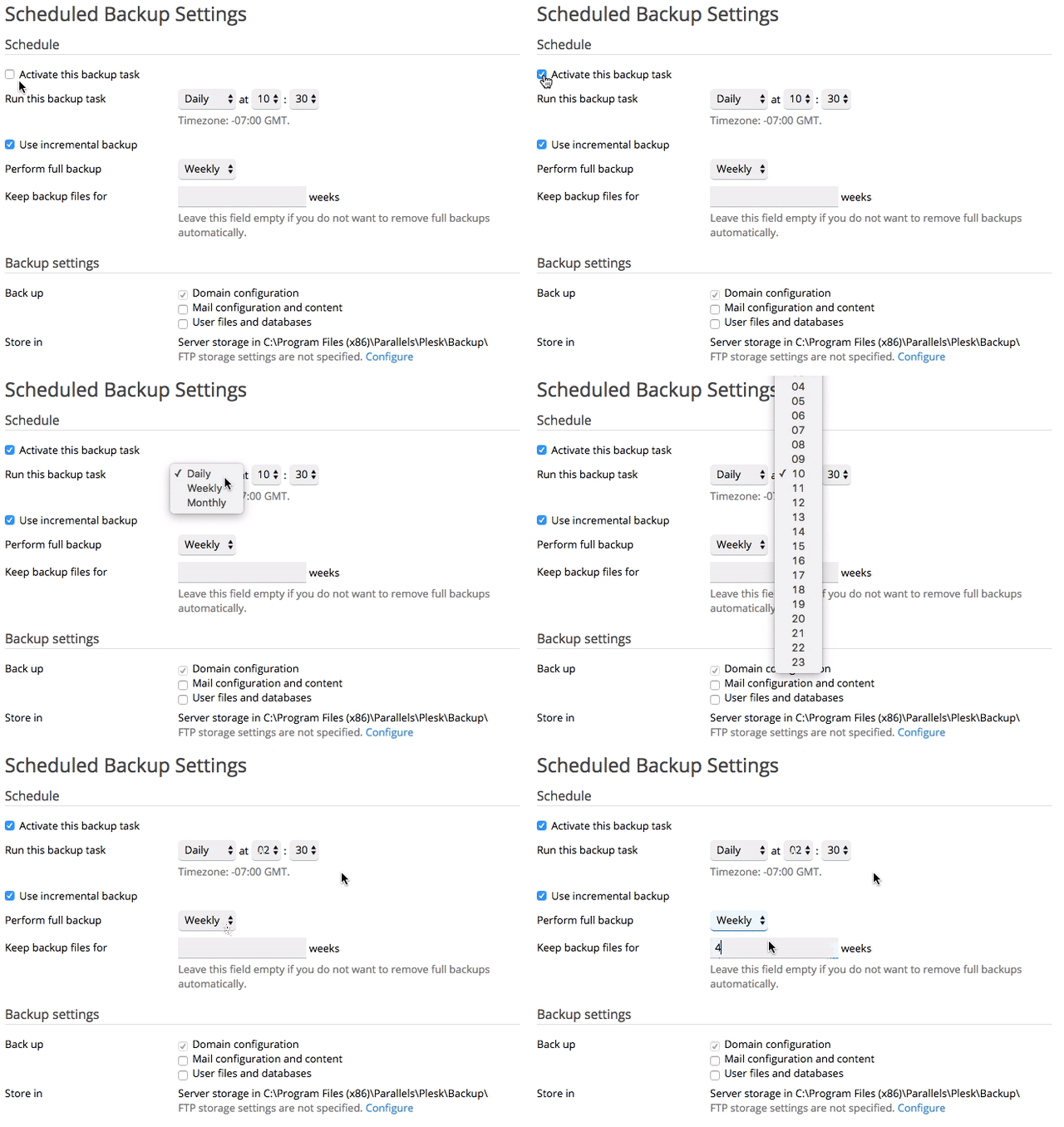
- Next choose your specific backup settings.
- Plesk will always back up your domain configuration, but you can choose to back up the mail configuration and content and user files and databases, too. Check the boxes next to the items you’d like to back up.
- If you’d like to be notified if something goes wrong with a backup, check the box next to If errors occur during the execution of this backup task, send a notification email to and then enter your email address.
- You have the option to take your site offline while backups are being created. This makes the backup process faster and creates the cleanest backup. If your site has periods with almost no traffic, this is a good option. Check the box to enable this.
- If you have MS SQL databases, leave the box checked to back these databases up properly. If you have remote MS SQL databases, talk to your developer about the proper settings.

- Click OK to save your changes and return to the Backup Manager.
Backing Up Your Entire Server
Configuring server-level backups is the same for both Power User view and Service Provider view.
- Log into Plesk. If you haven’t logged into Plesk before, read Getting Started with Plesk.
- Click on Tools & Settings in the left navigation menu. Then, in the Tools & Resources section, click on Backup Manager.

- Backup Manager will list any backups you have saved. Click on Schedule to schedule your backup.

Tip:
When you schedule backups, the first backup won’t occur until when it’s scheduled for. So, if you don’t have any backups at all, you can manually back up your domain by clicking Back Up in Backup Manager. Then select what information you’d like to back up an click OK. You can run a manual backup at any time. We recommend manually backing up your domain before making major changes to your website. - Check the box next to Activate this backup task. This is vital: without checking this box, you won’t back up anything!
- Now you’ll set the schedule for your backups.
- Choose how often (daily, weekly, or monthly) you’d like your backups to run.
- Then choose when you’d like your backup task to run. We recommend you run backups when your site traffic is low: for most websites, the middle of the night is a good time.
- You can choose to run incremental backups or full backups. An incremental backup only includes what has changed since the last time you completed a backup. These backups take up much less disk space.
- If you choose to use incremental backups, choose how often you’d like to perform a full backup.
- Then, choose how many months you’d like to keep these full backups for.

- Next choose your specific backup settings.
- Plesk will always back up your domain configuration, but you can choose to back up the mail configuration and content and user files and databases, too. Check the boxes next to the items you’d like to back up.
- If you’d like to be notified if something goes wrong with a backup, check the box next to If errors occur during the execution of this backup task, send a notification email to and then enter your email address.
- You have the option to take your site offline while backups are being created. This makes the backup process faster and creates the cleanest backup. If your site has periods with almost no traffic, this is a good option. Check the box to enable this.
- If you have MS SQL databases, leave the box checked to back these databases up properly. If you have remote MS SQL databases, talk to your developer about the proper settings.

- Click OK to save your changes and return to the Backup Manager.