

Storing cPanel Backups in Object Storage
Introduction
Using Liquid Web Object Storage is a great way to store your cPanel backups on a separate filesystem, rather than using up disk space on your server. This will help you to keep your backups organized and in a location where it is less accessible to public view, thereby allowing for greater security against malicious attacks. We’ve already discussed how to download, install, and create a bucket with DiskDragon, the third-party software we suggest you use to interact with your files in your Object Store.
There are two steps to this process:
Step by step instructions
Install Object Store Plugin
To install the Object Store plugin, log into your server as root via command line and run the following command:
yum install lw-ObjStor4cPanel
It should look similar to this:
Once the plugin is installed, you can configure cPanel to run backups and place them in your Object Store bucket.
Configure cPanel
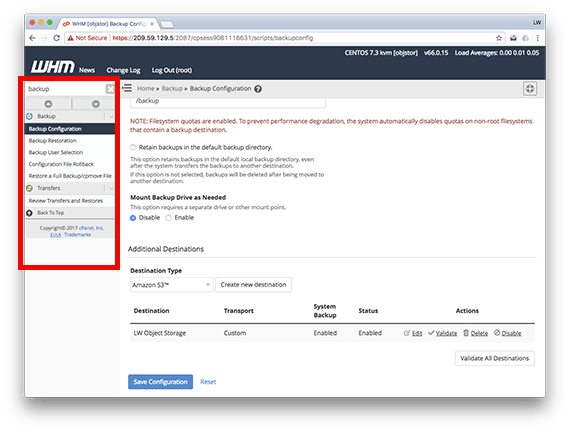
- To configure the cPanel backup destination in WHM, go to the cPanel configuration screen in WHM. Type the word backup in the search bar in WHM and select Backup Configuration from the menu.
- Edit the LW Object Storage destination, and change the Remote Host, Username, and Password fields as shown in the next image.
Configuration Settings:
Host: The bucket name you created when setting up the bucket with DiskDragon.
Username: Access Key
Password: Secret Key
- Click Save Destination.
- Now that your configuration is saved, you will need to Validate the destination. Click on the Validate link in the Object Storage listed in WHM.
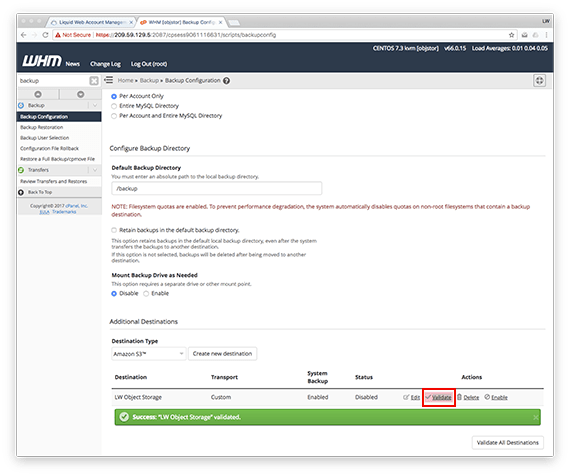
- The last step is to enable the destination, click on the Enable link in the same line of your Object Storage in WHM.

You have now set your backups to be directed and saved in your Liquid Web Cloud Object Storage. Please make sure you adjust your daily, weekly, and monthly backup settings in cPanel to control the number of backups that are retained. This will help keep your storage free for future backups by not retaining too many outdated ones.