Taking a Manual Backup in cPanel
To make sure you can restore your website if something goes wrong, you should have periodic backups scheduled. If you aren’t already automatically backing up your websites, read Configuring cPanel Backups in WHM.
Sometimes you’ll want to manually back up a website in addition to your automatic backups. For instance, if you’re going to make large changes to the website, it’s a good idea to back up your website just in case something goes wrong. That way, you can restore an old version of your website while your developer figures out the problem. It’s also a good idea to create a backup if you’re going to make major changes to your server.
We recommend downloading a backup right before you make major changes to your website. This ensures your backup has the most up-to-date website information. It’s easy to back up a website using cPanel!
- Log into your website’s cPanel account. If you haven’t created a cPanel account yet, read Creating a cPanel User Account first.
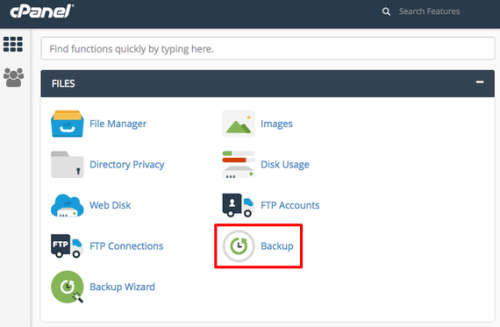
- On the cPanel home page in the Files section, click on Backup.

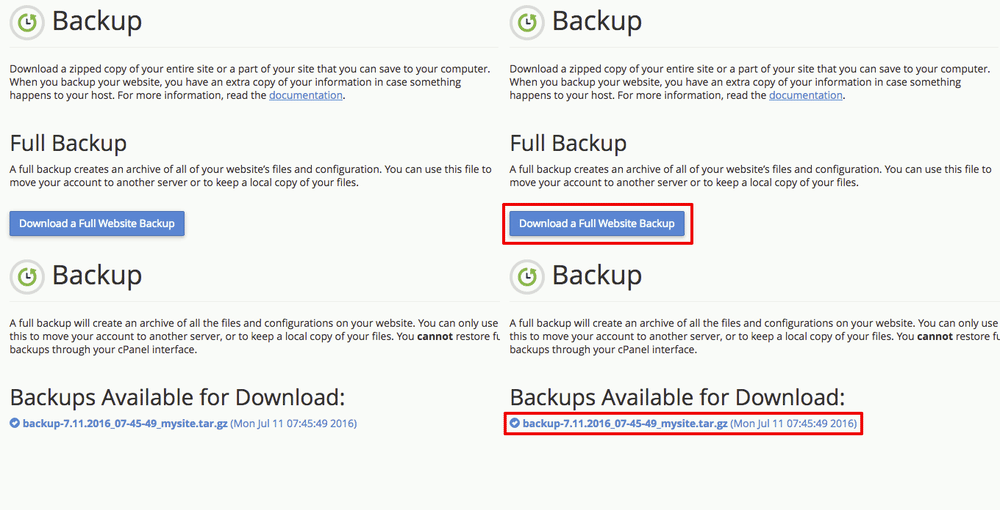
- Click on Download a Full Website Backup. If you’ve downloaded any manual backups recently, you’ll see these backup files listed under Backups Available for Download.

- Under Generate a Full Backup, choose your Backup Destination. If you’re going to download your backup to your computer, it is probably easiest to leave the destination as Home Directory. But if you’re an advanced user, you can choose any backup destination you’d like.

- If your website has a lot of files, it might take a while to back everything up. If you think it’ll take a bit to take a backup, enter your email address and you’ll get an email notification when your backup is finished. If you don’t want an email notification, click the radio button next to Do not send email notification of backup completion.

- Click Generate Backup. You’ll see a confirmation that your backup is in progress. Click Go Back to return to the backup configuration page.

- If you’ve downloaded the backup to your home directory, your backup will show up in the Backups Available for Download section. Simply click on the backup you just created to download it to your computer.




Deleting Unnecessary Backups
Once you no longer need your backup file, you might want to delete it from your website’s home directory (if you saved the backup in your home directory). Backups can be quite large and storing a lot of them on your server can slow down your websites.
- If you’re still on the Backups page, click the cPanel icon in the upper left hand corner of the screen to return to the cPanel home page.
- In the Files section, click on File Manager.

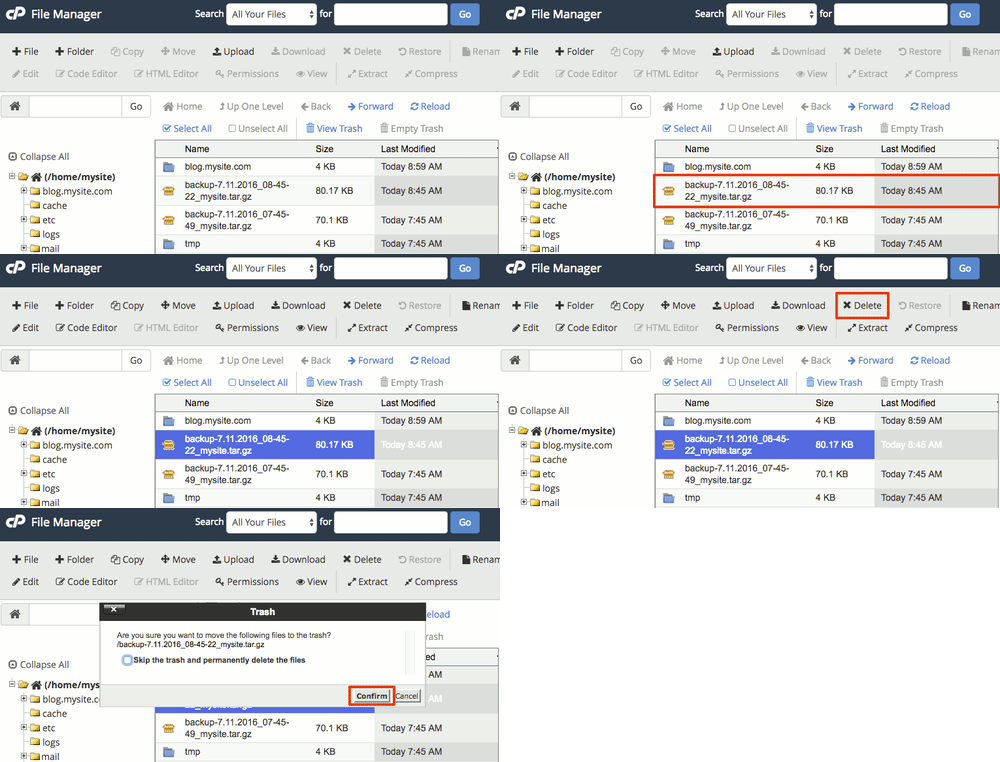
- Look for filenames starting with “backup.” These are your manual backups. (Your automatic scheduled backups are stored somewhere else: usually in the /backups directory.)
- Click on the backup file you’d like to delete and then click Delete in the top functions menu. Confirm that you want to delete the file.