

Using CSF Firewall to Mitigate DoS/DDoS Attacks
All publicly accessible webservers face the threat of Denial-of-Service (DoS) and Distributed-Denial-of-Service (DDoS) attacks. Our article What Is a Denial-of-Service (DoS or DDoS) Attack will help explain these types of attacks.
The CSF Firewall on your fully managed Liquid Web server can be used to mitigate small attacks. There are limitations, however, to the effectiveness against these attacks. Before proceeding, it is important to understand the following points:
- It is not possible to prevent a DoS/DDoS attack against any server connected to the Internet. Once in progress, the only thing that can be done is to try to mitigate the effect of the attack.
- During an attack, the server will normally not respond and the most that can be done is to try to keep it online during the attack. This can be done by reducing the impact of the incoming traffic.
- In some cases, the best way to deal with a large volume attack is to null-route the server’s IP address. This means temporarily taking the server offline until the incoming traffic subsides.
- CSF measures will only be effective only against small attacks. These measures should be implemented only while the server is under attack. The firewall settings should always be restored after the attack to minimize disruption of legitimate incoming traffic.
There are also other ways to mitigate small-scale attacks in addition to CSF. There are several services like CloudFlare that can help buffer traffic to the server. For maximum protection against large attacks (millions of incoming packets per second), a specialized DoS mitigation service may be necessary, read more about our DDoS attack protection services on our website: https://www.liquidweb.com/hosting-add-ons/ddos-protection-for-servers/.
To configure CSF for mitigation, go ahead and open CSF plugin from WHM, and click on the Firewall Configuration button to open the configuration file.

Warning: |
| Before making any changes to your firewall configuration, it is important to take a backup. You can learn how in our article Backing Up Your CSF Firewall Configuration |
Rate Limit Incoming Traffic
Rate limit incoming traffic is the first step. CSF tracks the number of connections hitting the server and blocks IP addresses at the firewall level that exceed a defined limit.
Note: |
| It is important not to set the limit too low as protocols such as FTP, IMAP and even HTTP all make multiple connections. Also, most companies, homes, and public hotspots may have many different computers on their internal network that all share a single public IP address. |
- Use the drop-down menu to navigate to the Connection Tracking section of the Firewall Configuration page.

- Set CT_Limit to the desired value.
About CT_Limit Values:
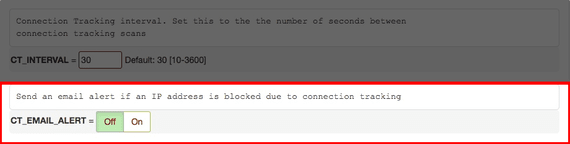
You may find that you need to lower or raise that number, but generally you should never attempt to set it below 100. - Set the CT_EMAIL_ALERT to Off. Otherwise you will receive an email every time an IP address is blocked and could overload your server.
Note:
You can also restrict rate limiting on specific ports. For example, apply rate limiting only to HTTP ports. Multiple ports can be added by separating them with a comma and no space between. 
SYNflood Protection
Another common DoS attack is a SYNflood attack. This is a DoS attack that exploits the TCP (Transmission Control Protocol) connection process itself. A TCP connection is established with the following sequence:
- The client (incoming connection) sends a synchronization (SYN) packet to the server.
- The server responds with a synchronization acknowledgment (SYN/ACK) to the client.
- The client then responds with an acknowledgement (ACK) back to the server.
A SYNflood attack initiates multiple synchronization requests and then refuses to respond with any final acknowledgments. The server to eventually run out of available connections for the targeted service and appear to be offline.
You can check for SYN packets on your Linux server by running the following command via SSH:
netstat -nap | grep SYN -c
The presence of SYN packets does not necessarily mean that a server is actually under SYNflood attack. If the load on the server is already high or there is a great deal of incoming traffic, an elevated level is to be expected. Only the presence of a large number, in the hundreds, is likely to be indicative of a possible SYNflood attack.
If you know that your server is under attack, you can configure CSF to help mitigate the attack.
- To enable SYNflood protection, use the drop-down menu in your CSF Firewall Configuration page to find the Port Flood Settings.

- You can enable SYNflood protection by clicking SYNFLOOD on and setting the maximum rate and burst:
- SYNFLOOD_RATE is the number of SYN packets to accept per IP, per second. For the purpose of this tutorial, we will use the value of 75/s on the assumption that a DoS attack is in progress.
- SYNFLOOD_BURST is the number of times the IP can hit the rate limit before being blocked by the firewall. We’ll use setting of 25 for the purpose of this tutorial
- Scroll to the bottom of the page and click the Change button.

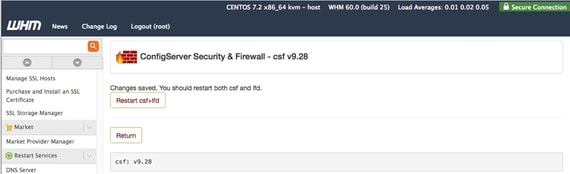
- You will be prompted to restart csf and lfd, click Restart csf & lfd. Once you restart the firewall, your changes will be complete.
Warning: |
| You will need to restore the firewall’s previous configuration after the attack subsides. If you do not, legitimate incoming traffic will be disrupted and slowed considerably as well as diminished server performance. Use the backup you took before making changes to the firewall configuration to quickly return your firewall to its previous configuration. See our article Restoring CSF Firewall Configuration from a Backup if you’re unsure how to do this. |