

Resize a VM in VMware Multi-Tenant
You may need to adjust the resources available to a specific VM from time to time, either to grant more resources for a project or to reduce some resources to free them up for another VM. Either way, you can use your enhanced access to resize any of the components of a particular VM.
- Log in to your Virtual Data Center (VDC). For help logging in, see Logging in to the VDC in VMware Multi-Tenant.
- Click the box containing the details of the VDC that contains the VM you want to resize.
- In the Virtual Machines section, click the name of the VM you want to resize. This will bring up the details for that VM.
- Power Off the VM before attempting to make any changes.
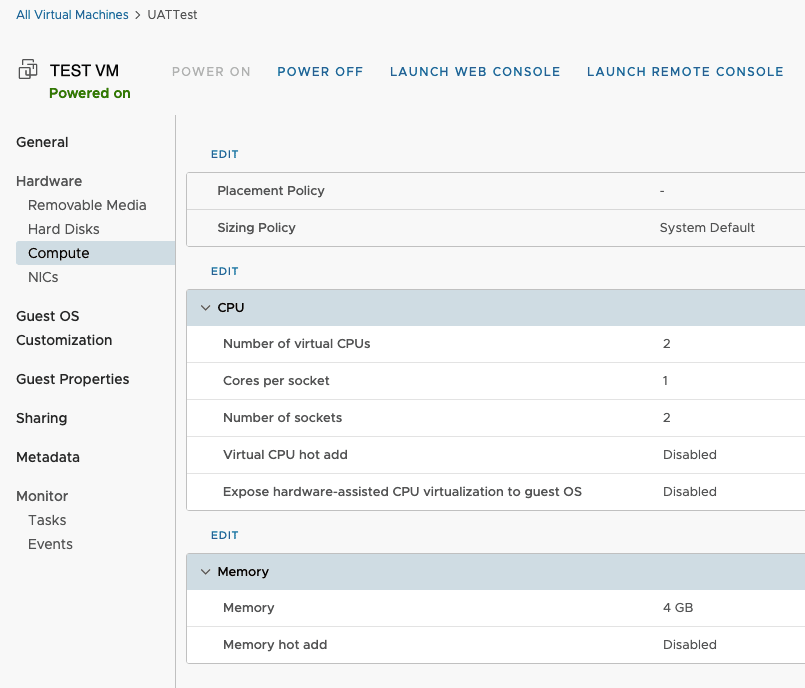
- Click EDIT above a section to adjust those resources. CPU and Memory are in the Compute Section. Hard Drive space is in the Hard Disks section.
- Adjust any of the resources as needed (CPU, Memory, or Hard Drive). Save the change and then power on the VM.
- Confirm that the changes were completed successfully (you may need to resize the disk in the operating system of the VM if you adjusted the hard drive size).
- If you need to make additional changes, repeat the steps above, beginning with powering off the VM.