

Adding Python path to Windows 10 or 11 PATH environment variable
Introduction
Python remains one of the most popular programming languages thanks to its versatility and user-friendly syntax. Its code and assets work seamlessly across major operating systems like macOS, Linux, and Windows. Properly configure Python on your Windows machine by adding the Python path to the Windows 10 / 11 PATH environment variable, allowing your system to recognize and execute Python commands regardless of the current directory.Windows Operating System environment variable specifies the location of Python libraries, allowing Python to be readily accessible from any location within your system.
Pre-requisites
- A Windows server with Administrator access.
Step-by-step Instructions
There are two methods of adding a python path to your Windows PATH system variable.
Add Python to PATH when installing
This method works for both Windows 10 and Windows 11.
- First, establish a connection to your server using Remote Desktop Protocol (RDP). If you’re new to RDP, you can review our guide on logging into your Windows Server for detailed instructions.
- Download and Run the Python Installer by navigating to the official Python.org website to download the latest installation package.
- Choose the Right Version: For most modern servers, you will need the Windows installer (64-bit). We recommend confirming any specific version requirements with your developer first.
- Execute the Installer: Once the download is complete, run the installer file to begin the setup process.
- Choose the Right Version: For most modern servers, you will need the Windows installer (64-bit). We recommend confirming any specific version requirements with your developer first.
- Select the Default Installation Path during setup. You will be presented with two choices but for the most reliable and straightforward experience, we recommend using the default installation option.
- Install Now: This option includes the standard libraries and is best for most users.
- Customize Installation: Only choose this if you need to change the installation location or install specific features, as it may require additional manual configuration of your environment variables.
- Install Now: This option includes the standard libraries and is best for most users.
- On the initial setup screen, check the box at the bottom labeled “Add Python [version] to PATH”.

Check the Python path in Windows post-installation
The following steps allow you to confirm whether Python is already in your Windows PATH variable.
- Search for Command Prompt (or PowerShell) in the Start Menu, then right-click the result and select Run as administrator.

- Type the following in your Command Prompt:
python- Python should launch right away if it is configured in your Windows PATH displaying version details or the Python prompt. An error saying the python command is unknown, means Python isn’t set in your PATH, requiring a manual adjustment of your Windows PATH system variable.

Powershell

Add Python to Windows PATH manually
Modify the path of an existing Python installation to add Python to your Windows PATH manually post installation by following this method.
Only follow these steps if the PATH was not added during the initial installation, or if you want to double-check and update your existing PATH settings.
- Update the PATH variable through the System Properties window. To start, press Win+R on your keyboard to open the Run dialog.
- Type in the following and press Enter.
sysdm.cpl- In the System Properties window, go to the Advanced tab, clicking the Environment Variables button.
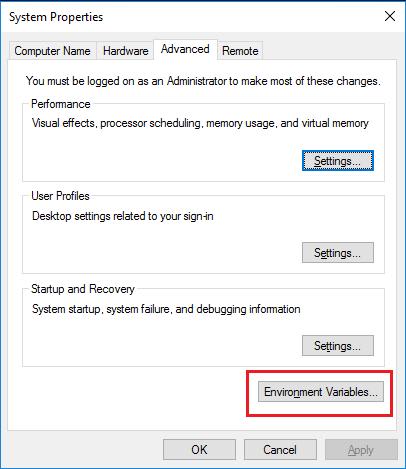
- Create a user variable by clicking the New button under the User Variables for Administrators section.

- Type in “
Python” for the variable name and the full installation path to your Python installation into the dialog box that appears and click OK.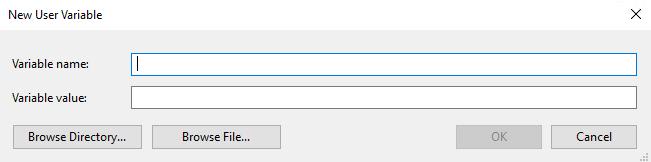
C:UsersAdministrator” user directory. Your path may look slightly different depending on where Python was installed.Variable Name:
PythonVariable Value:
C:UsersAdministratorAppDataLocalProgramsPythonPython313- Locate the Path entry in the System Variable section, highlight it, and then click the Edit button.

- Click the New button to add an entry to the bottom of the Environment Variable list. Type in the full installation path to your Python installation with Scripts added to the end of it.
In our example, we are using:
C:UsersAdministratorAppDataLocalProgramsPythonPython313Scripts- Check the path again using the method listed above to verify the installation.
Why PATH order matters
PATH order determines which executable file you access first after entering a command.
How it works: When you run a command in Command Prompt/ PowerShell, Windows scans through the directories listed in PATH – from top to bottom attempting to find a matching executable, running the first one that matters. This order becomes especially important if you have multiple versions of the same program installed (for example, two different Python versions). By rearranging the directories in PATH, you can tell Windows which version should take priority when you run a command.
Order of operations
- Your system will check for the program, starting at the top. If the system finds the right program, it runs immediately.
- If the system doesn’t find any match, you will see an error saying the command is unknown.