

 Ronald Caldwell
 Users responsible for managing databases require suitable access and privileges to carry out specific tasks. This tutorial walks you through how to assign a user to a MySQL database in cPanel.
Requirements
- A server with cPanel. This tutorial is using Liquid Web’s cPanel VPS.
- cPanel login credentials.
- Log into cPanel.
- A previously created MySQL database.
How To Assign a User to a MySQL Database in cPanel
1. Log into cPanel.

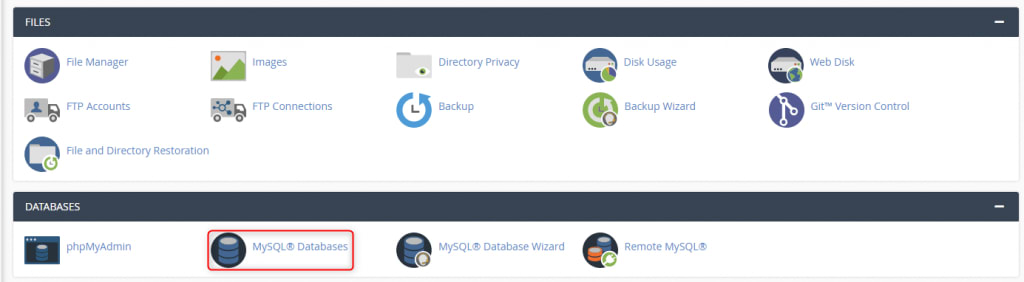
2. Click the MySQL Databases icon under the Databases section.
3. Under Add User To Database, select the user you want to add and the database to which you want the user added. Once the selections are made, click Add.

4. Select the privileges you want to grant the user. For this tutorial, select the check box next to All Privileges. Once your user privileges are set, click Make Changes.

5. A success indicator appears in the upper right-hand corner of the window advising the user has been assigned to the database.

6. To see the user assigned to the database, navigate to the MySQL Databases page under Current Databases.

Wrapping Up
This guide on how to assign a user to a MySQL database in cPanel helps you provide access to the users needing access to your databases.
Liquid Web offers cPanel with our VPS hosting, cloud servers, and dedicated server options. Contact our sales team today to choose what’s right for your next project.