


How to Access Your Windows Server with Remote Desktop
In this article, we explain how to use Remote Desktop to access your Windows server's desktop from anywhere in the world. On a normal Windows computer, you have a keyboard, monitor, and mouse that allow you to interact with the machine. For Windows VPS servers hosted on the Internet, things are a bit different because your server could physically be thousands of miles away. To access the desktop of an Internet-hosted server, Microsoft has created a feature known as Remote Desktop.
Please note that this article pertains only to those who have a Windows server, those with Linux servers can learn how to use SSH to access their server.
Supported Operating Systems
All Liquid Web Windows servers are capable of Remote Desktop. However, not all client computers can use it. Here is a list of operating systems known to be capable of communicating with your Windows server with Remote Desktop:
- Microsoft Windows 2000 Clients and Servers
- Microsoft Windows XP Professional
- Microsoft Windows 2003 Server
- Microsoft Windows Vista Ultimate and Business Editions
- Microsoft Windows 2008 Server
- Microsoft Windows 7 and later
- Linux with the RDesktop application installed
- Mac OS X with a Remote Desktop client:
(Mac OS X versions 10.9 and later: Microsoft Remote Desktop)
(Mac OS X versions 10.5-10.8 only: Open Source CoRD Client)
(Mac OS X versions before 10.7: Microsoft Remote Desktop Connection Client for Mac)
Remote Desktop from a Windows Computer
- Click the Start button.
- Click Run...
- Type "mstsc" and press the Enter key.
- Next to Computer: type in the IP address of your server
- Click Connect.
- If all goes well, you will see the Windows login prompt.
Remote Desktop from a Linux Computer with RDesktop
- Open a command shell using xterm
- Type 'rdesktop' at the command prompt to see if you have rdesktop installed
- If rdesktop is installed, then proceed. Otherwise, you will need to install the rdesktop package for your flavor of Linux.
- Type 'rdesktop' followed by your server's IP address. Then press Enter.
- Example:
$ rdesktop 72.52.246.40
- Example:
- If all goes well, you will see the Windows login prompt.
Remote Desktop from Mac OS X
- Using Microsoft Remote Desktop (Mac OS X versions 10.9 and later):
- Install Microsoft Remote Desktop from the Mac App Store.
- Click the New button or use the shortcut Command + N to set up a connection to your server with the following settings:
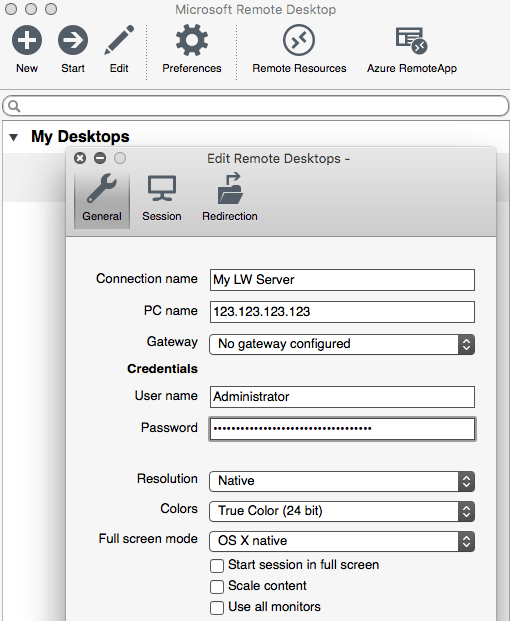
- PC name: You can use your server's IP address or its hostname (if the hostname has an appropriate DNS record and resolves).
- Username: To access the admin account, use "Administrator".
- Password: Enter the Administrator password.
- Configure full-screen and multi-monitor settings to your preference.
- Once you've filled in the appropriate settings, close the Edit Remote Desktops window.
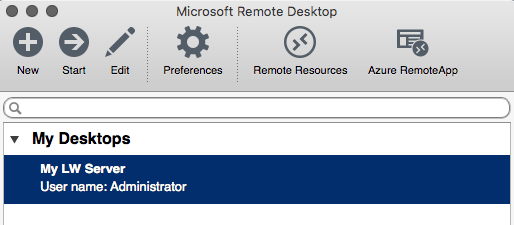
- Select your connection under My Desktops and press the Start button in the menu to connect (or simply press the return key on your keyboard).
- If your server uses a self-signed SSL certificate, a message will be displayed as Remote Desktop is negotiating credentials. You can either press Continue to proceed with the connection or, to permanently store the certificate and connect directly in the future, click Show Certificate and then check the box next to Always trust ... before clicking Continue to proceed.
- Using CoRD (Mac OS X versions 10.5 through 10.8 only):
- Download and install the CoRD application
- Open the application and click on the File menu, then New Server
- You will be presented with a window where you can specify information about the server you are connecting to.
- Enter the server's hostname or IP address in the Address field.
- You can alter the other settings in this window if you wish but all you need to start the connection is the address.
- When you are finished making changes, press the enter/return key on your keyboard or simply close the new server window.
- Your new server profile will appear in the list to the left side of the application. Double-click on it and you will start the connection to your server.
- Using the Microsoft RDP Tool (Mac OS X versions before 10.7 only):
- Download and install the Microsoft Remote Desktop Connection Client for Mac.
- When you open the application, you will be prompted for the "Computer:" you would like to connect to. You can enter the server's hostname or IP address.
- After you click Connect the client will ask for your user name and password. If it fails to connect, you can try again inside the remote connection window.
Not getting the support you need? Liquid Web’s VPS servers outmatch the competition on performance and support by a WIDE margin. We can migrate your data over to our environment for free. Check out how the difference in quality today!
The Most Helpful Humans In Hosting™
We pride ourselves on being The Most Helpful Humans In Hosting™! Our support staff is always available to assist with any Dedicated, Cloud, or VPS server issues 24 hours a day, 7 days a week 365 days a year.
We are available, via our ticketing systems at support@liquidweb.com, by phone (at 800-580-4986) or via a LiveChat for whatever method you prefer. We work hard for you so you can relax.
Related Articles:


About the Author: Dan Silva
I am a musician, an amateur cook, a gamer and a technology lover. After a few years of studying for a primary education teacher I realized that I liked computers better. Thus, I've been working as a professional Linux support tech for a bit over two years now and really liking it. Lately, I've been spending most of my free time behind the screen playing Ori, The Will of the Wisps, and learning Python. I would recommend both!


Our Sales and Support teams are available 24 hours by phone or e-mail to assist.
Latest Articles
How to use kill commands in Linux
Read ArticleChange cPanel password from WebHost Manager (WHM)
Read ArticleChange cPanel password from WebHost Manager (WHM)
Read ArticleChange cPanel password from WebHost Manager (WHM)
Read ArticleChange the root password in WebHost Manager (WHM)
Read Article